


If an installer run as administrator suddenly cannot see a mapped network drive, or an app forgets its settings every time you elevate it, Windows Administrator protection is the likely cause. It changes how Windows hands out admin rights, and some apps and habits do not survive the change.
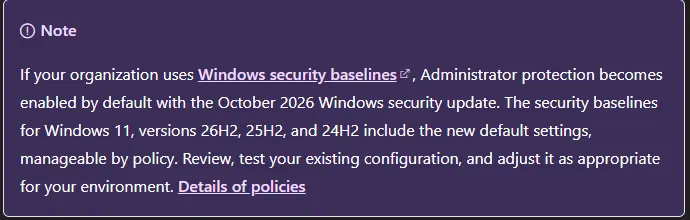
If your organization applies the Windows security baselines, Administrator protection turned on by default with the October 2026 security update. Microsoft’s baselines for Windows 11 24H2, 25H2 and 26H2 include it. On other PCs it has been available, off by default, since KB5120998.
What Changed
With classic UAC, an admin account clicks Yes and the app runs with that same account’s full token. With Administrator protection, Windows authorizes the elevation with Windows Hello, then runs the app under a hidden, system-generated admin account with its own separate profile. The admin token is thrown away when the app closes.
That separate profile is the source of almost every problem below. The elevated app is not really running as you. It does not see your mapped drives, your app settings or your single sign-on session.
Fix: Elevated Apps Cannot See Network Drives
Drives and shares you mapped or signed into from your normal session are invisible to elevated apps. Microsoft lists this as a known limitation it is working on. Until then:
Installers: install in user context where the app allows it, so normal network credential prompts still appear. If it must run elevated, copy the installer to a local folder such as C:\Temp first, then run it from there.
Scripts: open an elevated terminal, map the share inside it, then run the script from that same window. The mapping only lasts for that elevated session, so map it each time:
net use S: \\fileserver\installs /persistent:no
S:\setup\install.ps1
Fix: Settings and Sign-In Do Not Carry Over
App settings: settings saved in your normal profile do not exist in the elevated profile, and the reverse. Only elevate apps that truly need it. Tools like WSL and Visual Studio that you sometimes run elevated need a separate install and setup in the elevated profile.
Single sign-on: the elevated session does not get your domain or cloud sign-in. Expect to sign in again inside elevated apps, such as an admin console or a PowerShell session connecting to Microsoft 365.
App updates that fail: download the update while elevated, then install it. If that still fails, Microsoft’s advice is to turn Administrator protection off temporarily for that update.
Fix: Remote Admin Tasks Run Without Admin Rights
With Administrator protection on, domain users in the local Administrators group get a non-elevated token on remote logons by default. Remote management that worked before can fail with access denied. Two policies control it:
User Account Control: Allow remote logon with elevated privileges for domain users in the local Administrators group when Administrator protection is enabled. Enabled restores the old UAC behavior for every domain admin.
User Account Control: Allow remote logon with elevated privileges for specified domain users and groups when Administrator protection is enabled. Use this to give remote elevation only to a named admin group. It is the safer choice.
If non-admin users get 0xC000000D on Remote Desktop, that was a separate bug, fixed by KB5127936 in late October. See ourRDP 0xC000000D fix.
Where Not to Turn It On
Microsoft says not to enable Administrator protection on Windows 365 Cloud PCs, Azure Virtual Desktop session hosts, devices that need Hyper-V, PCs whose apps share files across profiles, and devices managed with LAPS. That last one catches a lot of small businesses. If you rotate the local admin password with Windows LAPS, exclude those devices from the policy for now.
How to Turn It Off or On
Intune
In a Settings catalog policy under Local Policies Security Options, set User Account Control Type Of Admin Approval Mode. Choose Administrator protection to enable it, or legacy Admin Approval Mode to turn it off. User Account Control Behavior Of the Elevation Prompt for Administrator Protection picks consent or credential prompts. If the setting comes from a security baseline profile, change it in the baseline, or the baseline turns it back on.
Group Policy
Go to Computer Configuration, Windows Settings, Security Settings, Local Policies, Security Options. Set User Account Control: Configure type of Admin Approval Mode to “Admin Approval Mode with Administrator protection” to enable it, or “Legacy Admin Approval Mode (Default)” to turn it off.
Single PC
Open Windows Security, go to Account protection and use the Administrator protection toggle. Microsoft is still rolling this toggle out, so it may not appear yet. Every method needs a restart to take effect.
See Who Is Elevating
Administrator protection logs approved and denied elevations as Event IDs 15031 and 15032 through the Microsoft-Windows-LUA trace provider. They are trace events, not regular Event Viewer entries, so start a trace to capture them:
logman start AdminProtectionTrace -p "{93c05d69-51a3-485e-877f-1806a8731346}" -ets
logman stop AdminProtectionTrace -ets
Open the resulting .etl file in Windows Performance Analyzer. Each event shows the user, the app path, the result and how the user authenticated.
What This Means for Your Business
Administrator protection makes it much harder for malware to quietly take over a PC, so leave it on where it works. The cost is friction for whoever installs software. If your IT person rolled out the Microsoft security baseline, ask whether they tested it on the PCs that use LAPS, Hyper-V or network installers.
Related Posts
Fix RDP 0xC000000D With Administrator Protection On
Windows LAPS Setup for Small Business
November 2026 Patch Tuesday Known Issues and Fixes
Need help rolling out Administrator protection without breaking apps? Contact Rain City Techworks.