

If a script you signed months ago now shows Status : NotSigned after the November 2026 Windows update, Windows has started rejecting files with invalid UTF-8. The fix is to save the script as UTF-8 with a BOM, check the text and sign it again. Microsoft ships a scan tool that finds the affected files for you.
Microsoft calls this intentional security hardening, so plan to fix the scripts rather than wait for a patch. It lands with the November 10 security update on Windows 11 23H2 through 26H2, Windows 10 Enterprise LTSC 2021 and Windows Server 2016 through 2025.
Quick Fix
Get the tool. Microsoft publishes Repair-SignedPowerShellUtf8.ps1 in the appendix of KB5135999. Save it, open Windows PowerShell 5.1 and run it from that folder. It never overwrites the original file.
Scan. Scan mode is the default and changes nothing:
.\Repair-SignedPowerShellUtf8.ps1 -Mode Scan -Path C:\Scripts -Recurse |
  Format-Table Path, Issue, SignatureStatus, Action -Wrap
Convert, review, sign. For each flagged file, make a UTF-8 with BOM copy. The copy drops the old signature, so read through it before you sign it:
.\Repair-SignedPowerShellUtf8.ps1 -Mode ConvertToUtf8Bom -Path C:\Scripts\Deploy.ps1
# review C:\Scripts\Deploy.utf8bom.ps1, then sign with your approved certificate
Set-AuthenticodeSignature -FilePath C:\Scripts\Deploy.utf8bom.ps1 -Certificate $cert
Get-AuthenticodeSignature -FilePath C:\Scripts\Deploy.utf8bom.ps1 | Format-List Status, StatusMessage
Deploy only on Valid. Status must read Valid. Test the new copy, then swap it in for the old one.
Symptoms
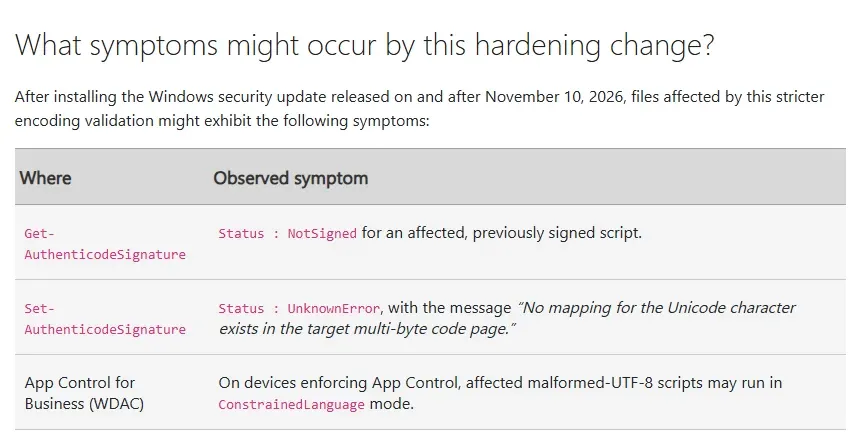
NotSigned on a signed script. This is the confusing one. Get-AuthenticodeSignature reports NotSigned even though the signature block is right there at the bottom of the file. A check that only looks for HashMismatch will miss every affected script.
Signing fails. Set-AuthenticodeSignature returns UnknownError with the message “No mapping for the Unicode character exists in the target multi-byte code page.”
Scripts drop to ConstrainedLanguage. On devices that enforce App Control for Business, the old WDAC, affected scripts run in ConstrainedLanguage mode. Expect odd failures in anything that calls .NET types or Add-Type.
Microsoft is clear that these symptoms have other causes too. Do not re-sign anything just because it says NotSigned. Run the scan first.
What the Scan Labels Mean
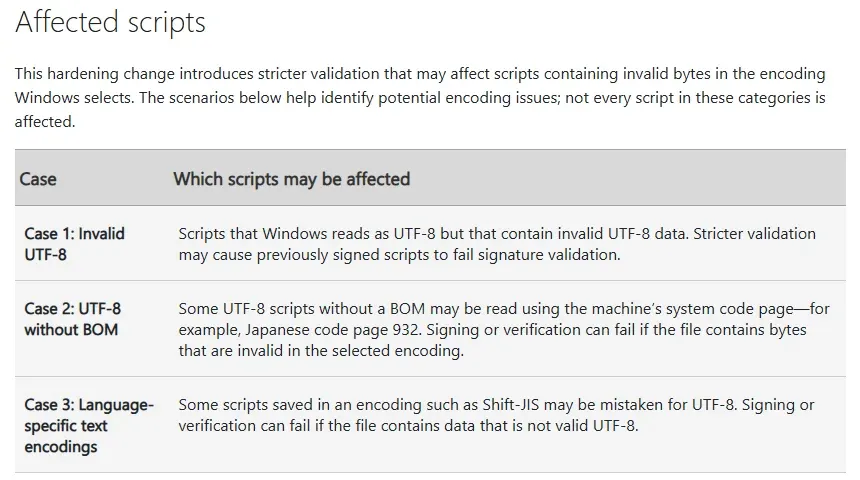
MalformedUtf8. Windows reads the file as UTF-8, but it contains invalid UTF-8 bytes. Convert and re-sign, or try Repair for a temporary fix.
Utf8WithoutBom. Valid UTF-8 with no BOM, so Windows guessed the machine’s system code page and the bytes do not fit it. This shows up on machines set to non-English code pages, such as Japanese code page 932.
CodePageTextReadAsUtf8. A file saved in a regional encoding like Shift-JIS that Windows mistook for UTF-8. Repair is not offered. Convert with the right source encoding, for example -SourceCodePage 932, then review and sign.
NotValidInCodePage and None. The first means the file is valid in neither encoding, so confirm what it was saved as before you touch it. None means the scan found no encoding problem, and the NotSigned status has some other cause.
The Temporary Repair Option
Repair mode tries to make a copy whose existing signature still validates, so you do not need the signing key. It helps when the certificate is gone or belongs to a vendor:
.\Repair-SignedPowerShellUtf8.ps1 -Mode Repair -Path C:\Scripts\Deploy.ps1For a Utf8WithoutBom file, run Repair on a machine with the same system code page as the one that signed the script. Check a machine’s code page with:
(Get-ItemProperty 'HKLM:\SYSTEM\CurrentControlSet\Control\Nls\CodePage').ACPA repair is not guaranteed. If it cannot produce a Valid signature and you do not hold the certificate, ask the publisher for a corrected, signed copy.
Scripts in Intune and Group Policy
Check anywhere signed scripts run unattended: Intune platform scripts and remediations with signature checks enforced, logon scripts in SYSVOL and scheduled tasks under an AllSigned execution policy. Those fail quietly. Point the scan at the source folders you deploy from, fix them there, then redeploy, so the broken copies do not come back.
For new scripts, save as UTF-8 with BOM from the start. In VS Code, pick “UTF-8 with BOM” from the encoding menu in the status bar before you sign.
References
Microsoft Support: Encoding Guidance for Signed PowerShell Scripts
Microsoft Support: November 10, 2026, KB5132061
Microsoft Learn: Hash of the file does not match when running a signed PowerShell script
Related Posts
October 2026 Patch Tuesday Known Issues
How to Safely Uninstall a Bad Windows 11 Update
Need help cleaning up a script library? Contact Rain City Techworks.