


Ask a small office how many devices are on its network and you will get a guess. Then you scan it and find two printers nobody remembers buying, a camera with a default password, and a PC under a desk that has not been patched since 2022.
A network scanner answers that question in a few minutes. Each of these five is a free network scanner for Windows, and each one is good at something different. One rule before you start: only scan networks you own or have written permission to scan.
1. Nmap and Zenmap
Nmap is the most capable scanner on this list. It is free and open source, and the Windows self-installer from nmap.org bundles everything it needs plus Zenmap, the official graphical front end. Zenmap exists to make Nmap usable for beginners, with saved scan profiles and a results view you can click through instead of reading raw output.
Nmap does far more than list live hosts. It finds open ports, identifies services and versions, and guesses operating systems. For a plain inventory of what is alive, a ping scan skips the port scan entirely. On a local Ethernet network, Nmap uses ARP requests for this:
nmap -sn 192.168.1.0/24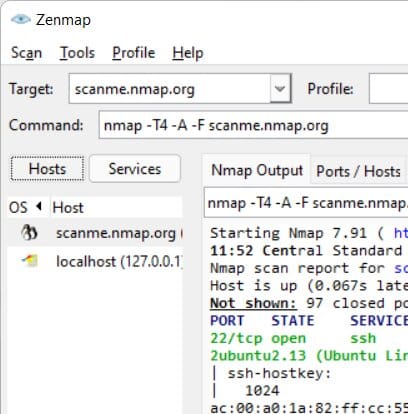
Who it is for: anyone who wants real answers about what is listening on the network, and anyone who expects to grow into security work.
The catch: the learning curve. Zenmap helps, but you will still read the documentation. Aggressive scan options can also upset fragile devices like old printers, so start with the ping scan.
Verdict: install it even if you use something simpler day to day. Nothing else on this list tells you as much. Download Nmap.
2. Angry IP Scanner
Angry IP Scanner is the fast, simple option. It pings each address in a range, then optionally resolves hostnames, finds MAC addresses, and checks ports. It is free and open source under GPLv2, runs on Windows, Mac, and Linux, and the Windows installer now bundles its own Java runtime, so you no longer have to install Java first.
It also pulls NetBIOS details where it can, including computer name, workgroup, and the currently logged-in Windows user, which is handy when you are trying to match an IP address to a person. Results export to CSV, TXT, XML, or a plain IP and port list.
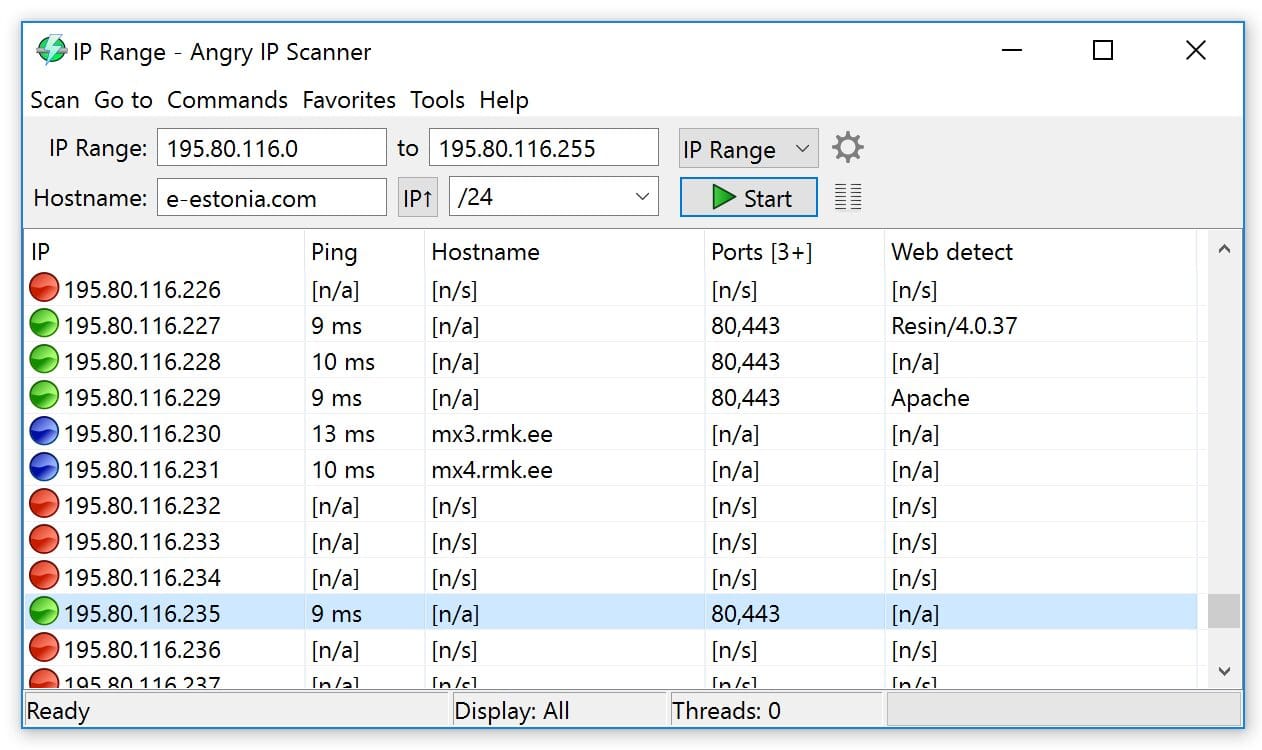
Who it is for: techs who want a quick sweep of a subnet and a spreadsheet of the results.
The catch: it finds things, but it does not tell you much about them. Port checks are basic compared to Nmap.
Verdict: the best quick-look scanner that is also open source. Download Angry IP Scanner.
3. Advanced IP Scanner
Advanced IP Scanner is Windows only and built around what a Windows admin does after finding a machine. Scan a range, then open its shared folders, connect with Remote Desktop or Radmin, or switch the computer on or off remotely. It detects MAC addresses, exports results to CSV, and runs as a portable app with no installation required.
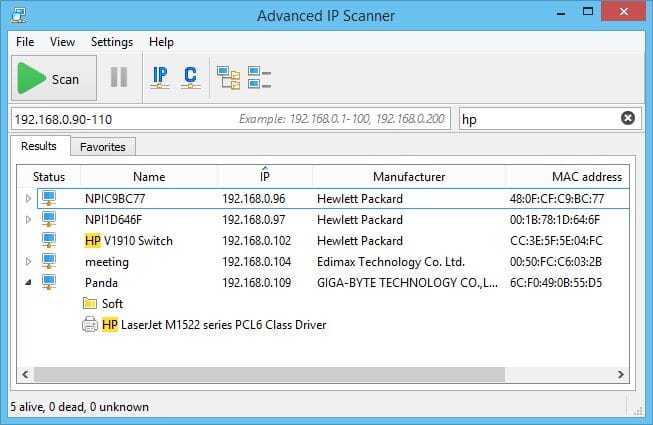
Who it is for: Windows shops where the next step after finding a PC is usually remoting into it.
The catch: it is closed source and comes from the company that sells Radmin, so the remote control features nudge you toward their product. Download it only from the official site below.
Verdict: the most convenient scanner on this list for day-to-day Windows admin work. Advanced IP Scanner.
4. Fing Desktop
Fing is the friendliest of the group. Fing Desktop for Windows and macOS recognizes devices by type and brand, keeps a timeline of devices joining and leaving, runs background scans, and can block an unwanted device from the network with one click.
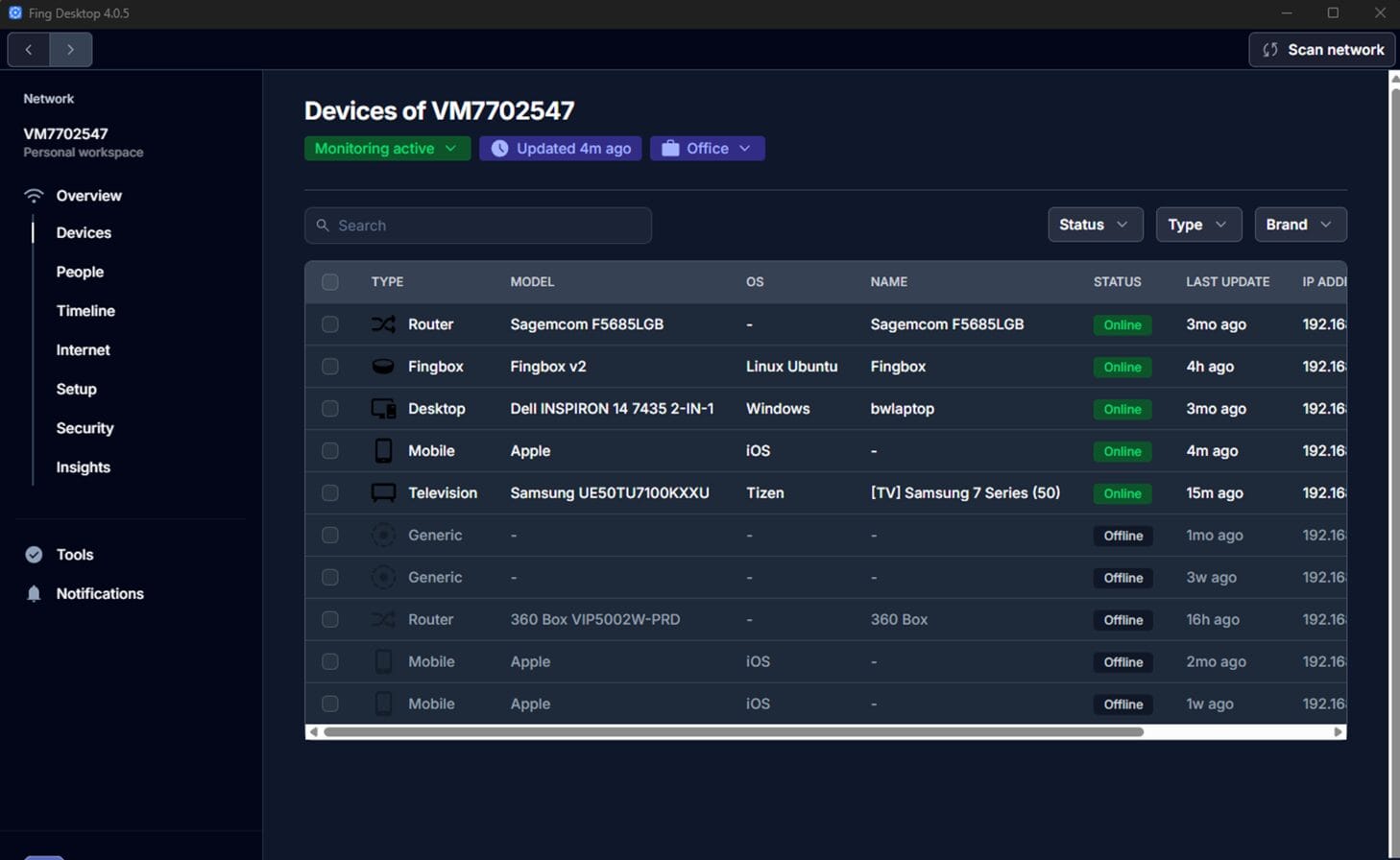
Who it is for: office managers and owners who want to see what is on the Wi-Fi without learning what a subnet is.
The catch: Fing describes the desktop app as free for personal use. Continuous monitoring and the deeper security checks need a paid subscription, so read the terms before you rely on it at work.
Verdict: the easiest way to answer what is on this network for a non-technical person. Fing Desktop.
5. What Is Already in Windows
Before you install anything, Windows has two tools that cover the basics. The arp command displays the ARP cache, the list of IP addresses your PC has recently talked to and their hardware addresses. Test-NetConnection checks whether a specific port answers on a specific machine, which is the first question to answer when an app cannot connect:
arp -a
Test-NetConnection 192.168.1.20 -Port 445
Test-NetConnection 192.168.1.20 -CommonTCPPort RDP
Look for TcpTestSucceeded : True in the output. The ARP cache only shows devices your PC has already communicated with, so it is a starting point, not an inventory.
Verdict: perfect for checking one machine or one port. For a full sweep, use one of the four tools above.
Free Network Scanners for Windows Compared
| Tool | Platforms | Open source | Install needed | Best at |
|---|---|---|---|---|
| Nmap and Zenmap | Windows, Mac, Linux | Yes | Yes | Ports, services, OS detection |
| Angry IP Scanner | Windows, Mac, Linux | Yes | Installer; standalone exe needs Java | Fast subnet sweeps and exports |
| Advanced IP Scanner | Windows | No | No | Shares, RDP, remote power |
| Fing Desktop | Windows, Mac | No | Yes | Device recognition for non-techs |
| arp and Test-NetConnection | Windows | Built in | No | Checking one host or port |
Which One to Use
For a one-time office inventory, run Angry IP Scanner or Advanced IP Scanner across the subnet and export the list. Anything you cannot name is the first thing to investigate.
For security work, use Nmap. Knowing which devices expose file sharing, remote desktop, or an admin web page is what actually reduces risk.
For ongoing peace of mind, Fing or a monthly scan with any of these catches new devices as they appear. Unknown devices are an easy foothold for attackers, which our guide on the first hours of a ransomware attack covers from the other side.
Frequently Asked Questions
Is it legal to scan my own network?
Scanning a network you own or are authorized to scan is the normal use of these tools. Nmap’s own legal guide says the best way to avoid trouble is to get written authorization from the people responsible for the network before any scanning. If you are scanning your employer’s network, make sure it clearly falls within your job description. Laws differ by state and country, so for anything beyond your own network, talk to a lawyer first.
What is the difference between a ping scan and a port scan?
A ping scan, which Nmap calls host discovery, answers one question: which IP addresses have a live device behind them. The -sn option tells Nmap to stop there and list the hosts that responded. A port scan goes further and checks which services each host is running. By default, nmap with just a target scans the 1,000 most common TCP ports and reports each one as open, closed, or filtered by a firewall.
Start with the ping scan for an inventory. Run port scans against the devices you actually need to understand.
How do I see all devices on my network in Windows?
Windows keeps a neighbor cache, the list of IP addresses on your local network and their hardware MAC addresses. In IPv4 this is the ARP cache. arp -a prints it, and PowerShell’s Get-NetNeighbor returns the same entries as objects you can filter:
Get-NetNeighbor -AddressFamily IPv4The cache only lists devices your PC has already talked to, so a quiet printer or camera can be missing. For a complete list, sweep the whole range with one of the scanners above. Nmap uses ARP requests on a local Ethernet network, which finds devices that ignore ping.
How do I find a device’s IP address from its MAC address?
Check the label on the device or your router’s DHCP client list first. On a Windows PC, run Get-NetNeighbor and look for the MAC address in the LinkLayerAddress column, which sits next to the matching IP address. If the device does not appear, run a ping scan of the subnet first so your PC talks to every live host, then check the cache again. Advanced IP Scanner shows MAC addresses beside each IP address in its results, and Angry IP Scanner can too once you turn on its MAC address option, which is often quicker.
Will a network scan disrupt anything or set off alarms?
A narrow scan on your own network rarely causes problems, but fragile devices like old printers can react badly to aggressive options. On networks you do not control, the more common result is a complaint: Nmap’s legal guide notes that a target network can notice a scan and report it to your internet provider. Keep scans as small as the job needs. If you only need live hosts, run a ping scan instead of a full port scan, and scan a /24 rather than a /16.
References
- Nmap Reference Guide: Host Discovery
- Nmap Reference Guide: Port Scanning Basics
- Nmap Network Scanning: Legal Issues
- Zenmap: the official Nmap GUI
- Angry IP Scanner: About
- Advanced IP Scanner: Help
- Microsoft Learn: Test-NetConnection
- Microsoft Learn: arp
- Microsoft Learn: Get-NetNeighbor
Keep Reading
- 5 Best Free Windows Debloat Tools
- Pi-hole: A Black Hole for Ads on Your Network
- Ransomware Attack? What to Do in the First 4 Hours
Want someone to map your network and flag what should not be there? Contact Rain City Techworks.