

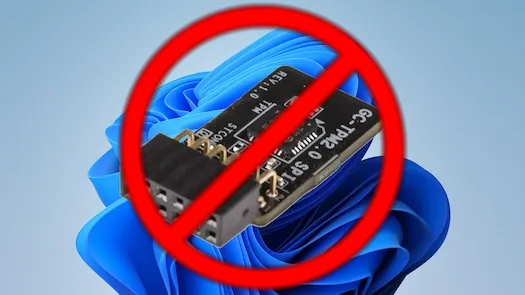
Windows 11 wants TPM 2.0, Secure Boot, and a recent CPU. Millions of PCs from 2015 through 2019 do not have all three. Microsoft says those machines cannot run Windows 11. Microsoft is wrong.
Windows 10 mainstream support ended in October 2025. Extended Security Updates cost money and will not last forever. If your hardware still runs fine but fails the Windows 11 compatibility check, you have options. Here are four methods that work right now, covering both clean installs and in-place upgrades from Windows 10.
Method 1: Rufus
Rufus is a free, open-source USB drive creator that has supported Windows 11 requirement bypasses since launch. It is the simplest option for fresh installations.
- Download the Windows 11 ISO from Microsoft.
- Download Rufus 4.4 or later.
- Open Rufus. Select your USB drive and the Windows 11 ISO.
- Click Start. A customization dialog appears.
- Check "Remove requirement for 4GB+ RAM, Secure Boot, and TPM 2.0."
- Also check "Remove requirement for an online Microsoft account" if you want a local account (see Part 1 of this series).
- Click OK. Rufus writes the modified installer to USB.
- Boot from USB and install Windows 11 normally.
Rufus patches the installer at the media level, so no registry edits or extra steps are needed during setup. It handles TPM, Secure Boot, CPU, and RAM checks all at once.
Method 2: FlyOOBE
If you want to upgrade from Windows 10 to Windows 11 without wiping your drive, FlyOOBE is the tool for the job. It is the successor to Flyby11, built by the same developer.
FlyOOBE works by using a Windows Server setup variant that skips hardware compatibility checks. It also lets you customize the OOBE experience, remove preinstalled bloatware, and disable telemetry during the upgrade.
- Download FlyOOBE from flyoobe.com or GitHub.
- Run the tool on your Windows 10 system.
- Let it download the Windows 11 ISO automatically, or point it to one you already have.
- Select your bypass and customization options.
- Start the upgrade. FlyOOBE handles the rest.
Two versions exist. FlyOOBE is the full package with OOBE customization and bloatware removal. Flyby11 Classic is the minimal version that just handles the bypass. Either one works.
Method 3: Registry Bypass for Clean Installs
If you prefer not to use third-party tools, you can set registry keys during Windows 11 setup to skip the hardware checks. This works when booting from standard Microsoft install media.
- Boot from a Windows 11 USB or ISO.
- At the language selection screen, press Shift+F10 to open Command Prompt.
- Type
regeditand press Enter. - Navigate to
HKEY_LOCAL_MACHINE\SYSTEM\Setup. - Right-click the Setup key, select New > Key, and name it
LabConfig. - Inside LabConfig, create these DWORD (32-bit) values:
BypassTPMCheck=1BypassSecureBootCheck=1BypassRAMCheck=1if your system has less than 4 GB
- Close Registry Editor and Command Prompt.
- Continue the installation normally.
The installer reads these keys during setup and skips the corresponding checks. This method has worked since Windows 11 launched and continues to work in 24H2.
Method 4: Registry Bypass for In-Place Upgrades
Upgrading from Windows 10 to Windows 11 on unsupported hardware requires a different registry key. Microsoft originally documented this method themselves before removing the page in early 2025.
- On your Windows 10 system, open Registry Editor. Press Win+R and type
regedit. - Navigate to
HKEY_LOCAL_MACHINE\SYSTEM\Setup\MoSetup. - If the MoSetup key does not exist, right-click Setup and create it.
- Inside MoSetup, create a new DWORD (32-bit) value named
AllowUpgradesWithUnsupportedTPMOrCPUand set it to1. - Download the Windows 11 ISO from Microsoft.
- Mount the ISO and run
setup.exedirectly from Windows 10. - Proceed through the upgrade wizard normally.
This method requires at least TPM 1.2. Systems with no TPM hardware at all should use Rufus for a clean install instead.
What Works After a Bypassed Install
Good news: bypassed Windows 11 installations work well for daily use. Here is what to expect:
Works normally:
- Cumulative Windows Updates, including monthly patches
- Windows Defender and all built-in security features
- Most applications and games
- Drivers and hardware support
May not work or has limitations:
- BitLocker drive encryption requires TPM hardware. Without it, you can still use BitLocker with a USB startup key or password, but the automatic unlock feature is unavailable.
- Windows Hello biometric features may be limited without TPM-backed key storage.
- AI features like Recall and Cocreator require NPUs and specific newer hardware. These will not work on older machines regardless of bypass.
- Future major updates could re-enforce hardware checks. Cumulative security updates continue, but feature updates might need a fresh bypass.
Not recommended for:
- Enterprise environments with compliance requirements like HIPAA or PCI
- Machines enrolled in Intune or domain-managed environments where Microsoft support is needed
- Production servers
Combining Both Bypasses
If your PC fails both the hardware check and you want a local account, you can handle everything in one step. Rufus lets you check both bypass options simultaneously: hardware requirements and Microsoft Account. One USB drive, all restrictions removed.
FlyOOBE also supports local account creation and OOBE customization alongside the hardware bypass.
For the full local account bypass guide, see Part 1: Installing Windows 11 Without a Microsoft Account.
Microsoft discourages running Windows 11 on unsupported hardware but does not actively block it after installation. Updates keep flowing, security patches arrive on schedule, and daily performance is fine on any PC that ran Windows 10 comfortably. Keep your Rufus USB drive or FlyOOBE installer handy in case a future feature update resets the checks.
Check your CPU for POPCNT support before you start. If that instruction is present, you are good to go.
Related Posts
Need help upgrading older PCs to Windows 11? Contact Rain City Techworks.