

Update (March 24, 2026): Microsoft released out-of-band update KB5085516 on March 21 that supersedes KB5079473. If you're still stuck in an install loop, try installing KB5085516 directly from the Microsoft Update Catalog instead. It includes the March security fixes and resolves several known issues from KB5079473.
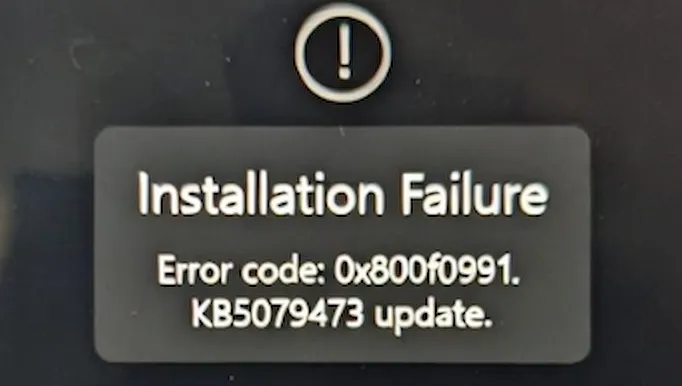
The March 2026 Patch Tuesday update, KB5079473, is giving some Windows 11 machines a hard time. It downloads fine, starts installing, then fails somewhere between 60 and 80 percent complete. Then it rolls back, tries again, and gets stuck in a loop.
This is more common on Surface devices and Snapdragon-based machines, but it's showing up on older hardware too.
Error Codes You Might See
- 0x800f0991 (most common, component store issue)
- 0x80073712 (component store corruption)
- 0x800f0831 (network-related install failure)
- 0x8007042B (another update in progress)
If you're seeing any of these in Windows Update history, the steps below apply.
Before You Start
Make sure you have at least 15 GB of free space on your C: drive. Low disk space is a hidden cause of update failures that a lot of people miss. You can check with:
Get-PSDrive C | Select-Object Used,Free
Also, temporarily disable any third-party antivirus before attempting the repair. Some endpoint products interfere with Windows component updates.
Fix 1: Install KB5085516 Instead
Microsoft released an out-of-band replacement update on March 21. Rather than fighting with KB5079473, install KB5085516 directly:
- Open Settings > Windows Update and click Check for updates.
- If KB5085516 appears, install it. It replaces KB5079473 entirely.
- If it doesn't show up, download it manually from the Microsoft Update Catalog by searching for KB5085516.
This is now the recommended path. The fixes below are still useful if KB5085516 also fails to install.
Fix 2: Clear Pending Update Actions
This clears any pending operations left behind from a failed update attempt.
Open Command Prompt as Administrator and run:
DISM /Online /Cleanup-Image /RevertPendingActions
Restart after it completes. Then go back to Windows Update and try installing KB5085516.
Fix 3: Repair Windows Components (SFC + DISM)
If clearing pending actions doesn't help, run a full component repair. This fixes the corrupt files in the Windows component store that cause 0x800f0991 specifically.
In an elevated Command Prompt, run these in order:
sfc /scannow
Wait for it to complete (takes a few minutes), then run:
DISM /Online /Cleanup-Image /CheckHealth
DISM /Online /Cleanup-Image /ScanHealth
DISM /Online /Cleanup-Image /RestoreHealth
Warning: If DISM RestoreHealth fails with a "source files could not be found" error, jump to Fix 4. RestoreHealth needs Windows Update to pull repair files, and if the update is breaking update connectivity, you'll need to point it at the ISO instead.
Restart after all four commands complete, then retry the update.
Fix 4: In-Place Upgrade Repair
This is the most reliable fix for stubborn update failures. It reinstalls Windows 11 in place, keeping all your apps and files, and forces the component store back to a healthy state.
- Download the Windows 11 ISO using Microsoft's Create Installation Media guide.
- Mount the ISO by double-clicking it in File Explorer.
- Run
setup.exefrom the mounted drive. - Choose Keep personal files and apps when prompted.
- Let the upgrade complete. This takes 20 to 45 minutes depending on your hardware.
After the in-place upgrade, the latest patches will already be included. You won't need to install KB5079473 or KB5085516 separately.
Fix 5: Pause Updates Temporarily
If you're not ready to do a full repair right now, pause updates to stop the loop:
- Go to Settings > Windows Update > Advanced options.
- Set Pause updates to 5 weeks.
This prevents Windows from hammering the failed update over and over while you prepare for a proper fix. Don't forget to come back to it.
Snapdragon and Surface Devices
If you're on a Surface or an ARM-based PC with a Snapdragon processor, the repair process is mostly the same. One difference: in-place upgrades require an ARM-compatible ISO. Make sure you download the ARM64 version from Microsoft's download page, not the x64 build.
For Surface devices specifically, also check for firmware updates before attempting the repair:
- Go to Settings > Windows Update > Advanced options.
- Click Optional updates.
- Install any available Surface firmware updates first, then retry KB5085516.
Related Posts
- Fix KB5079473 Sign-In Error 0x800704cf
- Fix KB5074109 Install Error (0x800f0991)
- Nuclear Windows Update Reset
Managing a fleet of machines and this update is failing across multiple devices? Our team can help.