

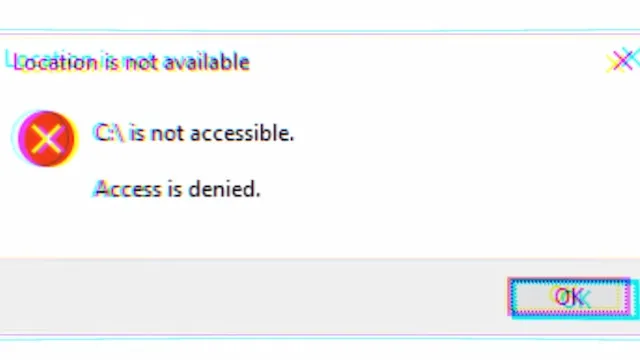
If you own a Samsung Galaxy Book and you've been hit with a "C:\ is not accessible. Access is denied." error recently, you're not dealing with a Windows problem. It's your Samsung software.
A recent update to the Samsung Galaxy Connect app (also called Quick Share in some regions) broke file system access on a number of Galaxy Book models, particularly the Book4 series. The timing lined up with March's Patch Tuesday, so many people blamed the wrong thing.
Here's the exact error you might be seeing:
"C:\ is not accessible. Access is denied."
or:
"Location is not available."
Samsung has already pushed a fix, and applying it takes about two minutes.
What Caused It
The buggy version of Samsung Galaxy Connect modified file system permissions related to how the app handles file sharing. This broke read access to the root of the C: drive for standard user operations, which causes File Explorer errors and app freezes across the board.
It is not a virus. It is not a Windows Update issue. It is a bad app update that Samsung shipped and has since corrected.
The Fix: Update Samsung Galaxy Connect
This should be your first and only step in most cases.
- Open the Microsoft Store on your Galaxy Book.
- Click the Library icon (bottom left).
- Click Get updates.
- Find Samsung Galaxy Connect (or Quick Share) in the list and let it update.
- Restart your PC.
After the restart, your C: drive should be fully accessible again.
If the Update Doesn't Show Up Yet
Sometimes the Microsoft Store takes a while to surface app updates. You can force a refresh:
- Open Microsoft Store and click your profile icon (top right).
- Choose App settings.
- Scroll down and click Reset.
- Go back to Library and try Get updates again.
Alternatively, uninstalling the app entirely also resolves the issue:
- Open Settings > Apps > Installed apps.
- Search for Samsung Galaxy Connect or Quick Share.
- Click the three dots and choose Uninstall.
- Restart your PC.
You can reinstall the app from Microsoft Store after the restart once Samsung's fixed version is live in your region.
If You're Completely Locked Out
In severe cases where even Settings won't open, you'll need to reach a Command Prompt through recovery:
- Hold Shift and click Restart from the Start menu.
- Go to Troubleshoot > Advanced options > Command Prompt.
- Run the following to reset the permissions Samsung's app modified:
icacls C:\ /reset /t /c /q
- Restart normally, then apply the app update.
Warning: Only use this if you're completely locked out. Running icacls /reset resets all custom ACL entries on the drive. It's generally safe, but it can affect other custom permission configurations if you have them set up.
Affected Models
The issue is confirmed on:
- Samsung Galaxy Book4 (all variants)
- Samsung Galaxy Book4 Pro and Pro 360
- Samsung Galaxy Book3 series (some reports)
- Samsung Galaxy Book2 series (limited reports)
What Not to Do
Don't reinstall Windows. Don't run drive repair tools. Don't blame KB5079473. The timing was coincidental, and a full Windows reinstall won't fix anything if you reinstall the same broken Samsung app afterward.
The app update is the fix. Everything else is unnecessary.
Need help managing a fleet of Samsung or mixed-hardware devices? Rain City Techworks handles endpoint management for businesses across the Seattle and Tacoma area.