

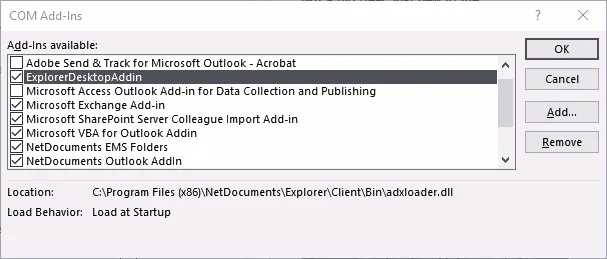
The NetDocuments Outlook add-in crashes, Outlook disables it, and your attorneys lose the ability to file emails to NetDocs. You re-enable it. A few days later, same thing. This is the single most common NetDocs support issue in law firms running classic Outlook.
The fix is the same concept as other Outlook add-in issues, but the registry paths and ProgIDs are specific to NetDocuments.
Why Outlook Disables the NetDocs Add-in
Outlook monitors every COM add-in for performance. If an add-in takes longer than one second to load across five consecutive launches, Outlook disables it automatically. The NetDocuments ndOffice and ndMail add-ins load substantial components at startup, and on machines with slow storage or large mailboxes, they regularly trip this threshold.
When Outlook disables an add-in, it records the decision here:
HKCU\Software\Microsoft\Office\16.0\Outlook\Resiliency\DisabledItems
Each disabled add-in gets a binary entry. Deleting the entry re-enables the add-in, but Outlook will disable it again unless you also block the resiliency check.
Step 1: Re-enable via Outlook
- Open Outlook. Go to File > Options > Add-ins.
- At the bottom, change the Manage dropdown to Disabled Items and click Go.
- If any NetDocuments add-in appears, select it and click Enable.
- Restart Outlook.
- Go back to Add-ins, change the dropdown to COM Add-ins, and click Go. Verify the NetDocuments add-ins are checked.
This gets the add-in back, but does not prevent Outlook from disabling it again.
Step 2: Clear Resiliency Keys
Open Registry Editor and delete all entries under:
HKCU\Software\Microsoft\Office\16.0\Outlook\Resiliency\DisabledItems
Also check and clear:
HKCU\Software\Microsoft\Office\16.0\Outlook\Resiliency\CrashingAddinList
This removes the history that Outlook uses to decide which add-ins are "problematic."
Step 3: Add to DoNotDisableAddinList
This is the permanent fix. You need the ProgID for each NetDocuments add-in you want to protect.
Navigate to:
HKCU\Software\Microsoft\Office\16.0\Outlook\Resiliency\DoNotDisableAddinList
Create this key if it does not exist. Then add DWORD values for each NetDocuments add-in:
The confirmed ProgID for the ndOffice Outlook add-in is NetDocuments.Client.OutlookAddIn. Add a DWORD value:
- Name:
NetDocuments.Client.OutlookAddIn - Value:
1
If your firm also uses ndMail, find its ProgID and add it the same way. ndMail ProgIDs vary by version. Run this to find yours:
Get-ChildItem "HKCU:\Software\Microsoft\Office\Outlook\Addins" |
    Where-Object { $_.PSChildName -match "NetDoc|ndMail|ndOffice" } |
    Select-Object PSChildName
Step 4: Fix LoadBehavior
While you are in the registry, check the LoadBehavior value for each NetDocuments add-in:
HKCU\Software\Microsoft\Office\Outlook\Addins\NetDocuments.Client.OutlookAddIn
The LoadBehavior DWORD must be set to 3 for the add-in to load automatically at startup. If Outlook changed it to 0 or 2 after a disable event, set it back to 3.
Also check HKLM\SOFTWARE\Microsoft\Office\Outlook\Addins\NetDocuments.Client.OutlookAddIn for a machine-level LoadBehavior that may override the user-level setting.
Step 5: Group Policy for the Whole Firm
For firms managing dozens or hundreds of machines, deploy via Group Policy:
Policy path: User Configuration > Administrative Templates > Microsoft Outlook 2016 > Miscellaneous > List of managed add-ins
Enable the policy and add entries for each NetDocuments ProgID with a value of 1.
You can also deploy the registry fixes via a PowerShell login script or Intune remediation:
$progId = "NetDocuments.Client.OutlookAddIn"

# Ensure LoadBehavior = 3
Set-ItemProperty -Path "HKCU:\SOFTWARE\Microsoft\Office\Outlook\Addins\$progId" -Name "LoadBehavior" -Value 3 -Type DWord

# Add to DoNotDisableAddinList
$dndPath = "HKCU:\Software\Microsoft\Office\16.0\Outlook\Resiliency\DoNotDisableAddinList"
New-Item -Path $dndPath -Force -ErrorAction SilentlyContinue | Out-Null
Set-ItemProperty -Path $dndPath -Name $progId -Value 1 -Type DWord

# Clear disabled items
Remove-Item -Path "HKCU:\Software\Microsoft\Office\16.0\Outlook\Resiliency\DisabledItems" -Recurse -Force -ErrorAction SilentlyContinue
Important for Intune deployments: HKCU keys must be deployed with "Run this script using the logged-on credentials" set to Yes. Running as SYSTEM cannot write to HKCU. Use Intune Proactive Remediations scheduled every few hours to catch new users and reset keys.
New Outlook Compatibility
NetDocuments has released a web-based Outlook add-in for the new Outlook for Windows and Outlook on the web. This add-in does not use COM and is not subject to the resiliency disabling issue. If your firm is evaluating the new Outlook, the NetDocs web add-in avoids this problem entirely, though feature parity with ndOffice and ndMail is still catching up.
Related Posts
NetDocs add-in keeps disappearing across your firm? Contact Rain City Techworks.