

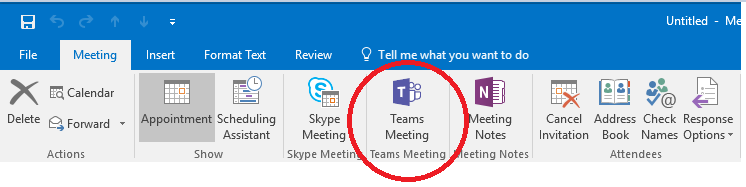
Outlook has a built-in performance monitor that watches every COM add-in you have installed. If an add-in takes longer than one second to load five times in a row, Outlook disables it. The Teams Meeting add-in is one of the most common casualties.
You re-enable it. A week later, it is disabled again. Here is how to fix it permanently.
Why Outlook Keeps Disabling the Teams Add-in
Outlook tracks three metrics for every COM add-in:
- Boot time. If the median startup time across five launches exceeds 1000ms, the add-in gets disabled.
- Shutdown time. If the add-in takes longer than 500ms to unload, same result.
- Crashes. If the add-in causes Outlook to crash, it goes on the CrashingAddinList.
The Teams add-in loads a full .NET runtime and WebView2 components. On slower machines or when .NET 4.8 is not fully installed, it regularly exceeds the boot time threshold.
When Outlook disables the add-in, it records the decision in the registry under:
HKCU\SOFTWARE\Microsoft\Office\16.0\Outlook\Resiliency\DisabledItems
Step 1: Re-enable the Add-in
- Open Outlook.
- Go to File > Options > Add-ins.
- At the bottom, change the Manage dropdown to Disabled Items and click Go.
- If "Microsoft Teams Meeting Add-in for Microsoft Office" appears, select it and click Enable.
- Restart Outlook.
- Go back to File > Options > Add-ins, change the dropdown to COM Add-ins, click Go, and confirm the Teams add-in is checked.
This gets the button back, but Outlook will likely disable it again within days.
Step 2: Set LoadBehavior to 3
The LoadBehavior registry value controls whether the add-in loads at startup.
Open Registry Editor and navigate to:
HKCU\SOFTWARE\Microsoft\Office\Outlook\Addins\TeamsAddin.FastConnect
Check the LoadBehavior DWORD value:
| Value | Meaning |
|---|---|
| 0 | Unloaded, will not load |
| 1 | Loaded manually, not at startup |
| 2 | Not loaded, but marked to load at startup |
| 3 | Load automatically at startup |
Set it to 3 if it is anything else. Restart Outlook.
Step 3: Prevent Outlook from Disabling It Again
This is the actual fix. Create a registry key that exempts the Teams add-in from Outlook's performance monitoring.
Open Registry Editor and navigate to:
HKCU\Software\Microsoft\Office\16.0\Outlook\Resiliency\DoNotDisableAddinList
If the DoNotDisableAddinList key does not exist, create it. Then create a new DWORD value:
- Name:
TeamsAddin.FastConnect - Value:
1
Also delete any entries under:
HKCU\Software\Microsoft\Office\16.0\Outlook\Resiliency\DisabledItems
This clears the disable history and tells Outlook to stop monitoring the Teams add-in for performance issues.
Step 4: PowerShell Script for Bulk Deployment
If you manage multiple machines, deploy this as a remediation script via Intune or GPO:
# Set LoadBehavior to 3
Set-ItemProperty -Path "HKCU:\SOFTWARE\Microsoft\Office\Outlook\Addins\TeamsAddin.FastConnect" -Name "LoadBehavior" -Value 3 -Type DWord

# Create DoNotDisableAddinList key
New-Item -Path "HKCU:\Software\Microsoft\Office\16.0\Outlook\Resiliency\DoNotDisableAddinList" -Force

# Exempt Teams add-in from resiliency monitoring
Set-ItemProperty -Path "HKCU:\Software\Microsoft\Office\16.0\Outlook\Resiliency\DoNotDisableAddinList" -Name "TeamsAddin.FastConnect" -Value 1 -Type DWord

# Clear any existing disabled items
Remove-Item -Path "HKCU:\Software\Microsoft\Office\16.0\Outlook\Resiliency\DisabledItems" -Recurse -Force -ErrorAction SilentlyContinue
Step 5: Group Policy for Managed Environments
For domain-joined machines, use the managed add-ins policy:
Path: User Configuration > Administrative Templates > Microsoft Outlook 2016 > Miscellaneous > List of managed add-ins
Enable the policy and add an entry:
- Value name:
TeamsAddin.FastConnect - Value:
1
This forces the add-in to always remain enabled across all machines in the OU.
New Outlook Does Not Have This Problem
If you are using the new Outlook for Windows, the Teams meeting functionality is built in natively. There is no COM add-in to disable. The toggle appears automatically in the calendar event window when you are signed into both Outlook and Teams with the same account.
The COM add-in issue only affects classic Outlook with classic or new Teams.
Related Posts
Outlook keeps disabling your Teams add-in across the office? Contact Rain City Techworks.