

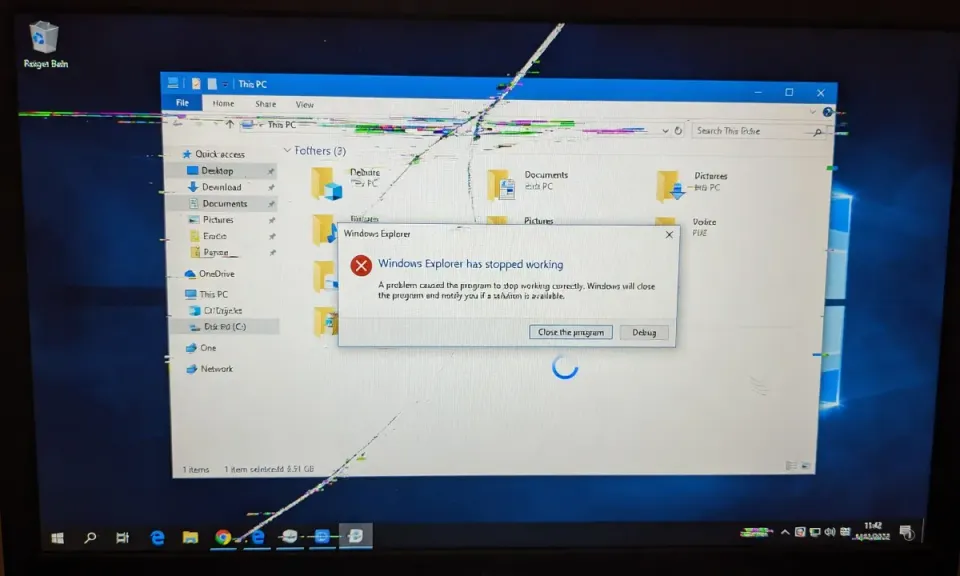
After the April 2026 cumulative updates land on Windows 11 24H2 and 25H2, File Explorer starts crashing mid-navigation, desktop icons go blank or white, and search lags for seconds per keystroke. The core servicing stack looks fine, but the icon cache and shell extensions are out of sync. A restart of explorer.exe patches it for the session. A proper fix rebuilds the icon cache and verifies system files.
Restart Explorer For A Quick Reset
From an elevated Task Manager or PowerShell, kill the shell and relaunch it:
Stop-Process -Name explorer -Force
Start-Process explorer.exe
If that restores icons and stops the crashes, you have a shell state problem, not a corrupted system file. Move to the cache rebuild below.
Rebuild The Icon And Thumbnail Cache
Close every Explorer window first. Then run this from an elevated PowerShell:
Stop-Process -Name explorer -Force
Remove-Item "$env:LOCALAPPDATA\IconCache.db" -Force -ErrorAction SilentlyContinue
Remove-Item "$env:LOCALAPPDATA\Microsoft\Windows\Explorer\iconcache*" -Force -ErrorAction SilentlyContinue
Remove-Item "$env:LOCALAPPDATA\Microsoft\Windows\Explorer\thumbcache*" -Force -ErrorAction SilentlyContinue
Start-Process explorer.exe
Windows regenerates the caches on next launch. Blank icons come back within a minute or two as folders repaint.
Run SFC And DISM
If crashes keep happening after the cache rebuild, scan the component store. From an elevated PowerShell:
sfc /scannow
DISM /Online /Cleanup-Image /RestoreHealth
Let both finish before rebooting. DISM pulls clean payloads from Windows Update, so the machine needs internet.
Disable Broken Shell Extensions
Third-party context menu handlers commonly break after cumulative updates. Use Nirsoft ShellExView to list non-Microsoft extensions and disable any that match your crash timing:
winget install --id Nirsoft.ShellExView
Run it elevated, sort by Company, hide Microsoft entries, then disable anything installed by sync clients, archive tools, or old cloud storage agents. Restart Explorer after each change.
Clean Boot To Confirm It Is Not A Startup App
If Explorer still falls over, isolate startup noise:
msconfig
On the Services tab, check Hide all Microsoft services, click Disable all. On the Startup tab, open Task Manager and disable every entry. Reboot. If Explorer is stable, re-enable services in halves until the crash returns. The last batch you re-enabled owns the bug.
Verify
Confirm Explorer is healthy and SFC is clean:
Get-Process explorer | Select-Object Id, StartTime, Responding
sfc /verifyonly
Expected output: Responding : True for Explorer, and Windows Resource Protection did not find any integrity violations from SFC.
Related Posts
- Fix Windows 11 Boot Loop After KB5083769 - The other major April 2026 patch break
- Fix Error 0x8007000e Not Enough Memory - Related Explorer and resource issues
- Clean WinSXS Folder - Free component store space if DISM runs slow
Need help auditing why half your fleet hit the same Explorer bug after Patch Tuesday? Contact Rain City Techworks.