


Your drive is full. You have no idea what's taking up space. You could spend an hour clicking through folders, or you could use WizTree.
WizTree scans your entire drive in seconds and shows you exactly what's using space.
Why WizTree?
You might have heard of WinDirStat, the classic disk analyzer and my go-to disk space tool for years. WizTree does the same thing but 10-50x faster.
How? WinDirStat reads files one by one. WizTree reads the Master File Table (MFT) directly. That's the same technique Windows uses for "Search Everything."
500GB drive with WinDirStat takes 2-5 minutes. With WizTree? 10-15 seconds.
Same information. Fraction of the time.
Download and Run
Get it from the official site: https://www.diskanalyzer.com/download
Free for personal use. Portable version available.
Run it, select a drive, and watch it finish before you can grab your coffee:
Reading the Results
Tree View (Left): Folders sorted by size. Expand to drill down. The biggest folders are at the top.
Treemap (Bottom): Visual representation where area equals size. Big boxes mean big files or folders. Hover to see names.
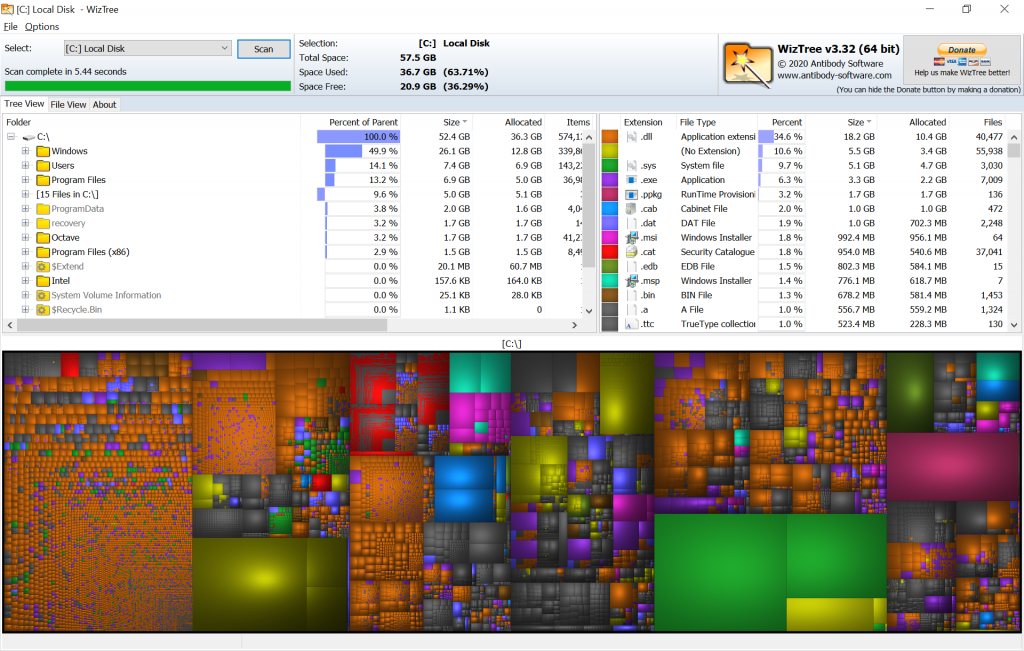
The treemap makes it instantly obvious what's eating space. That huge purple block? It's your Steam games folder.
Finding Large Files
Click the "Top 1000 Largest Files" button at the top.
This is usually where the gold is: forgotten ISO files, old downloads, massive log files, games you haven't played in years, backup files you forgot about.
Sort by size and start from the top.
File Types View
Click "File Types" to see disk usage by extension. You might discover your video files are taking 45GB, ISOs are using 28GB, and zip archives account for 12GB.
Now you know where to focus your cleanup efforts.
Deleting Files
Found something to delete?
Right-click, then Open in Explorer, then Delete from there. Or right-click, then Delete directly (be careful, this is permanent, not Recycle Bin).
Use "Open in Explorer" first to verify you're deleting the right thing.
Common Space Hogs
Windows.old: After a major Windows update, the previous installation is kept in Windows.old. Can be 20GB+. Delete via Disk Cleanup, then "Previous Windows installations."
Temp Files: Sort by modified date. Old temp files can pile up.
Downloads Folder: Check your Downloads folder. It accumulates installers, ISOs, and random files.
Game Platforms: Steam, Epic, Origin. Each keeps games and cache. Uninstall games you don't play.
Browser Cache: Chrome and Firefox cache can grow large. Clear from browser settings.
WizTree vs WinDirStat
| WinDirStat | WizTree | |
|---|---|---|
| Speed | Slow | Very fast |
| Technology | File-by-file | MFT direct read |
| Treemap | Yes | Yes |
| File types view | Yes | Yes |
| Portable | Yes | Yes |
| Price | Free | Free (personal) |
WizTree is strictly better unless you need WinDirStat's pacman animation while scanning (I get it).
Portable Version
Don't want to install? Download the portable version. Run from USB drive if needed.
Same functionality, no installation, no traces left behind.
Techworks Blog