

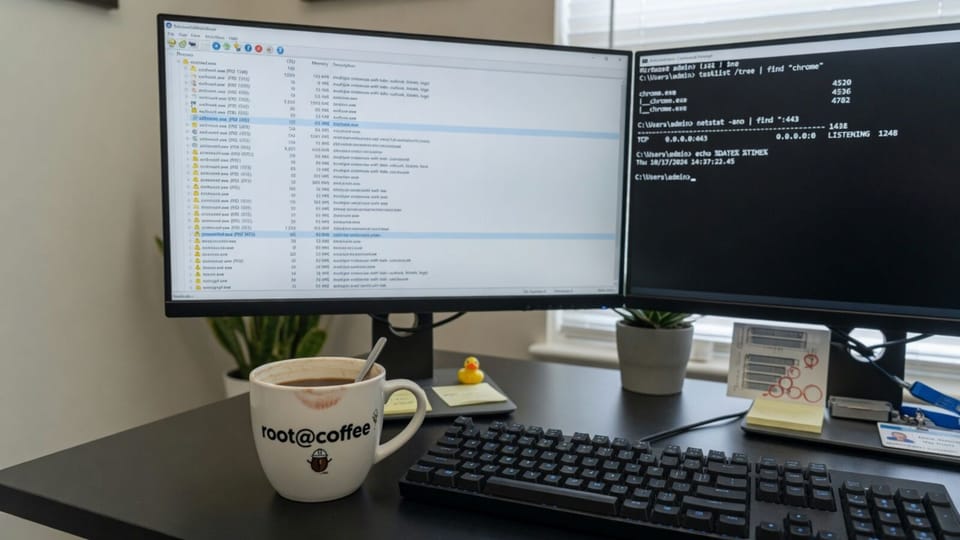
A PC takes four minutes to boot, an app throws "access denied" with no clue which file it wanted, or something on the network is talking to an address nobody recognizes. Task Manager shrugs at all three.
Microsoft’s Sysinternals tools were built for exactly these moments. They are free, published by Microsoft, and most of them run without installing anything. These are the six we reach for first, what each one is good at, and the catch with each.
Getting the Sysinternals Suite
The easiest route is the Sysinternals Suite, one download with the troubleshooting utilities in it. Microsoft also publishes the suite in the Microsoft Store, plus separate builds for ARM64 and Nano Server. Most tool pages, including Autoruns, Process Monitor, TCPView, and BgInfo, also have a Run now link that launches the tool straight from Sysinternals Live, which is handy on a machine you do not want to leave anything behind on.
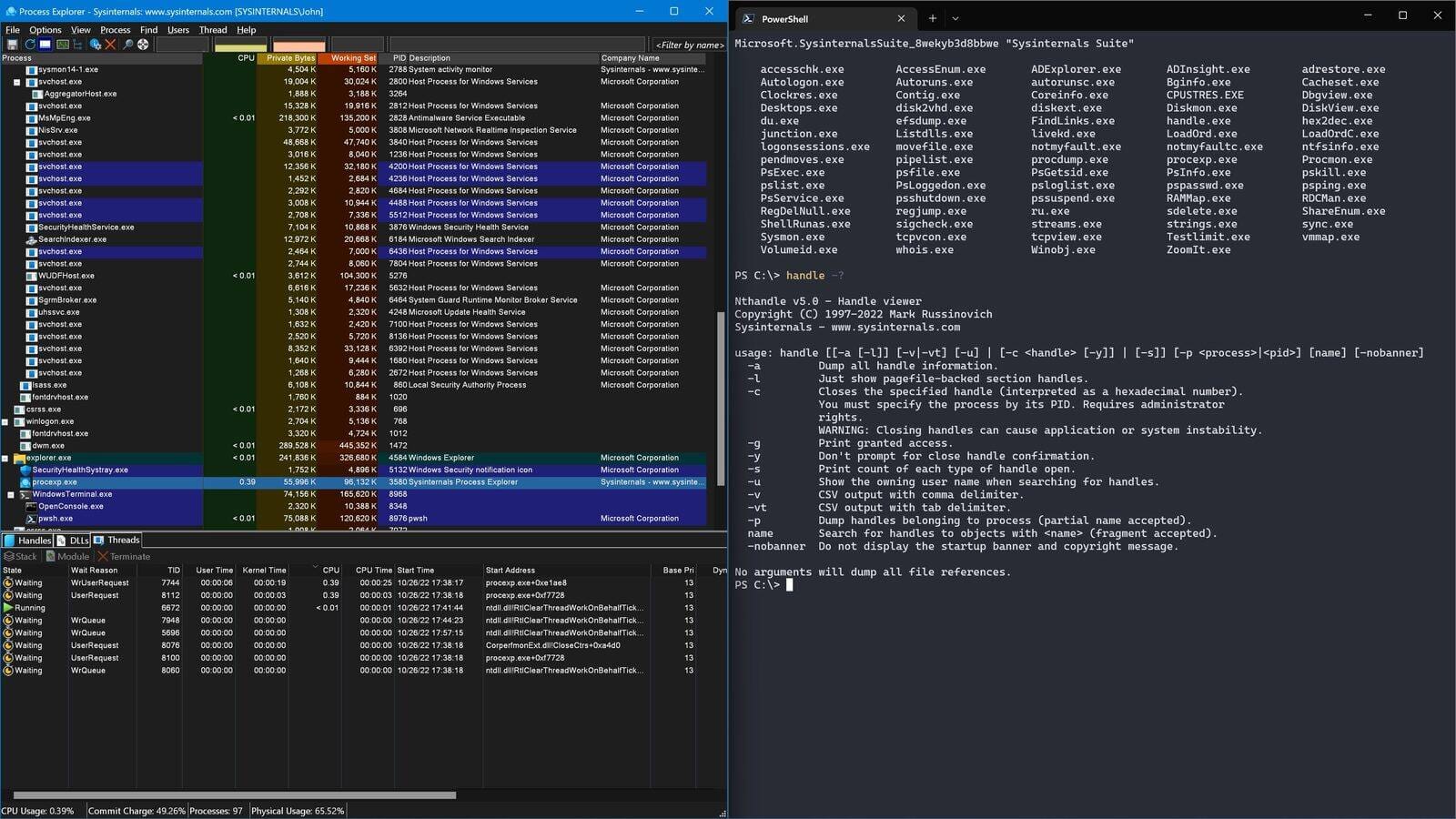
You will see Process Explorer in that screenshot. It is the Task Manager replacement most people already know, so it gets a post of its own rather than a slot here.
1. Autoruns
Autoruns shows everything configured to start when Windows boots or a user signs in. That covers the obvious places like the Startup folder and the Run keys, plus the ones malware likes: services, drivers, scheduled tasks, Winlogon entries, image hijacks, and Explorer shell extensions. Uncheck an entry to disable it, or delete it outright.
When to reach for it: slow logons, a pop-up that comes back after every reboot, or any machine you suspect is infected. Turn on Hide Signed Microsoft Entries and the list shrinks to the third-party items that actually need a look. The scan options can verify code signatures and check file hashes against VirusTotal.
The catch: it shows a lot, and disabling the wrong driver or service can break a machine. Disable before you delete, and change one thing at a time.
The download includes autorunsc, a command-line version that exports to CSV. That makes it easy to snapshot a clean machine and compare it to a suspicious one later:
autorunsc64.exe -a * -c -h -s -m > C:\Temp\autoruns.csv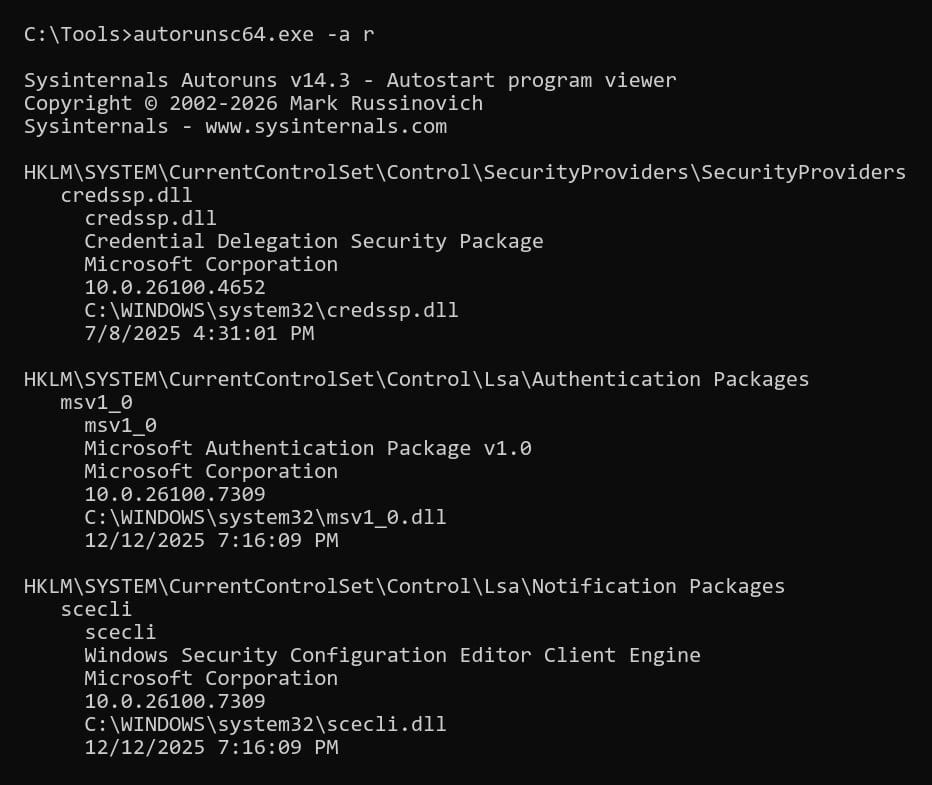
Verdict: the first thing to run on a PC you do not trust.
2. Process Monitor
Process Monitor records file system, registry, and process activity as it happens. It replaced two older Sysinternals tools, Filemon and Regmon, and adds filters that hide events without throwing them away, so you can widen the view later without recapturing.
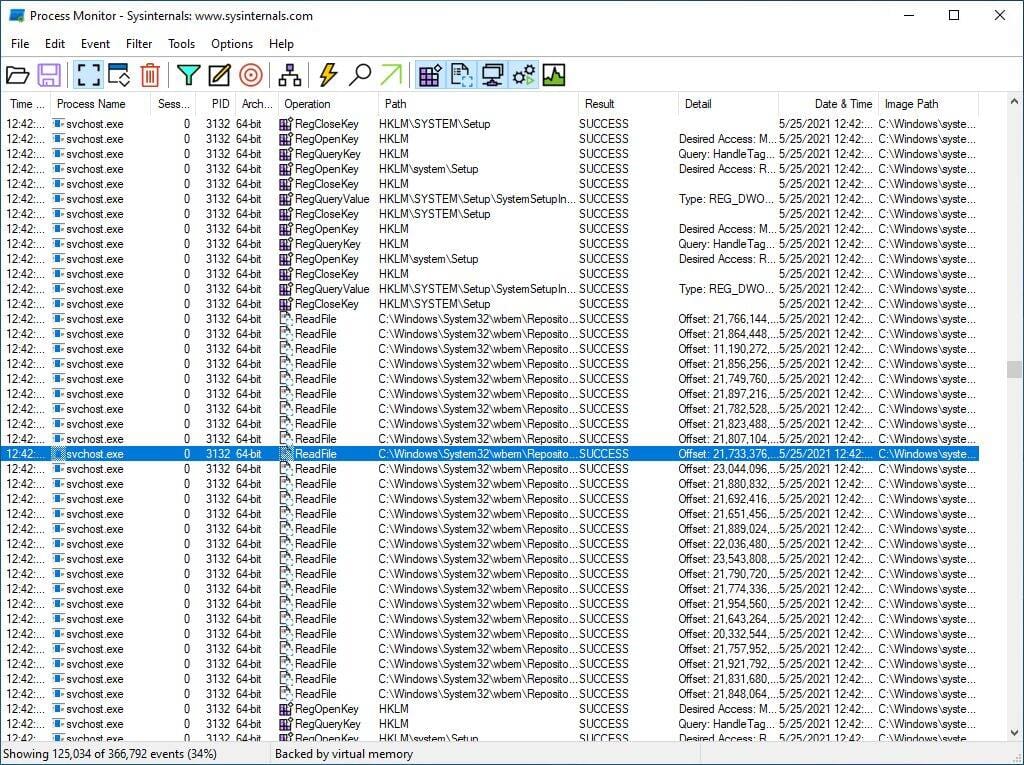
When to reach for it: an app fails with "access denied", a vague error, or a setting that will not stick. Start a capture, reproduce the problem, stop the capture, then filter on the process name and look for ACCESS DENIED or NAME NOT FOUND in the Result column. The failing file or registry key is usually sitting right there. It can also log during boot, which catches problems that happen before you can sign in.
The catch: it captures a staggering amount of data. Leave it running unattended and the log grows fast, so capture only while you reproduce the issue.
Verdict: the single best tool for "why does this app not work."
3. TCPView
TCPView lists every TCP and UDP endpoint on the machine along with the process that owns it. It is the friendly version of netstat: new connections show up in green, closed ones in red, and changed ones in yellow, refreshing every second.
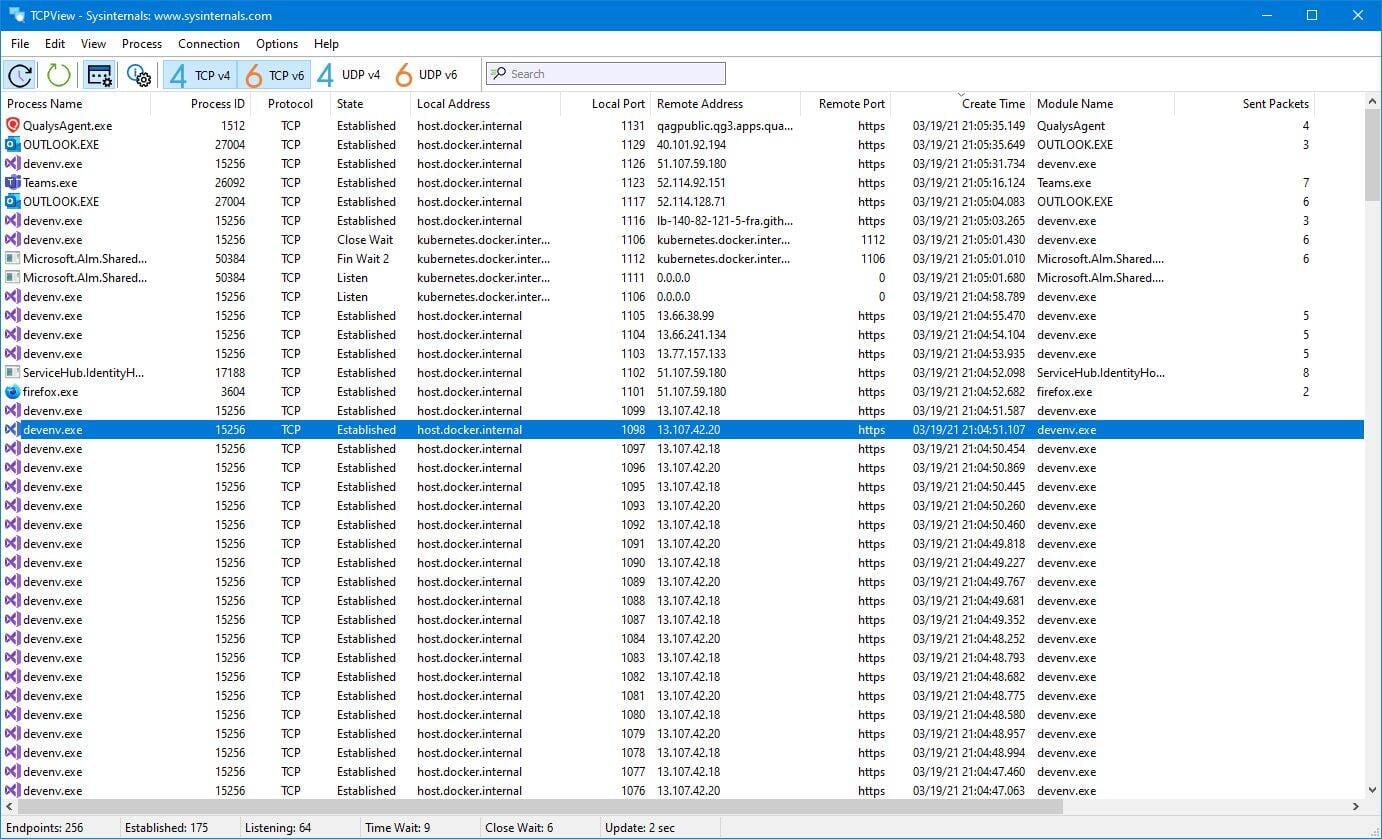
When to reach for it: a firewall alert, a slow connection, or simple curiosity about what a new app phones home to. You can close an established connection from the right-click menu while you investigate.
The download also includes Tcpvcon for scripts. This shows every endpoint as CSV without resolving names:
tcpvcon64.exe -a -c -nThe catch: it shows connections, not the data inside them. It tells you who is talking, not what they said.
Verdict: faster than any packet capture for answering "what is this PC connected to."
4. Sysmon
Sysmon is different from the rest of this list. It installs as a service and driver, stays running across reboots, and writes detailed security events to the Windows event log: every process start with its full command line and parent, file hashes, driver loads, and optionally network connections. Events land in Applications and Services Logs, under Microsoft, Windows, Sysmon, Operational.
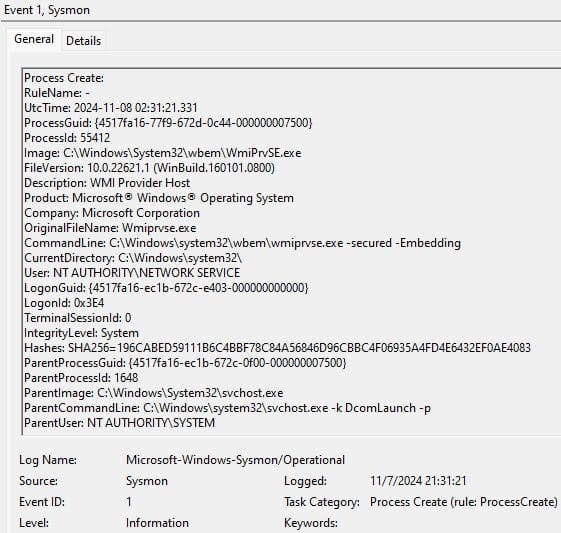
sysmon64.exe -accepteula -i C:\Windows\config.xml
sysmon64.exe -c
When to reach for it: before you need it. After an incident, the first question is always what ran and what launched it, and Windows does not keep that by default. Install and uninstall do not need a reboot.
The catch: Microsoft says plainly that Sysmon does not analyze anything. It only records. Without a sensible configuration file and somewhere to send the events, you end up with a noisy log nobody reads.
Verdict: cheap insurance for your servers and key workstations, as long as someone owns the config.
5. BgInfo
BgInfo writes the computer name, IP address, OS version, and whatever other fields you choose onto the desktop wallpaper, then exits. It does not stay running, so it costs nothing after logon.
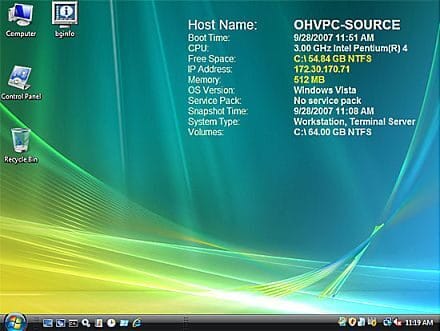
When to reach for it: servers and shared machines where you need to know at a glance which box you are on. Save your layout as a .bgi file and apply it silently at logon:
Bginfo64.exe C:\Tools\server.bgi /timer:0 /silentThe catch: it is a static picture. The information is only as fresh as the last time BgInfo ran, so put it in a startup or logon script.
Verdict: small, boring, and saves you from running a command on the wrong server.
6. PsExec
PsExec runs a command on another Windows machine without having to manually install client software on it. Microsoft notes the password and command are encrypted in transit. Add -s and the command runs as the System account, which is useful when you need to test something with the permissions Windows services use.
psexec.exe -accepteula \\PC-FRONTDESK ipconfig /all
psexec.exe -accepteula -i -s cmd.exe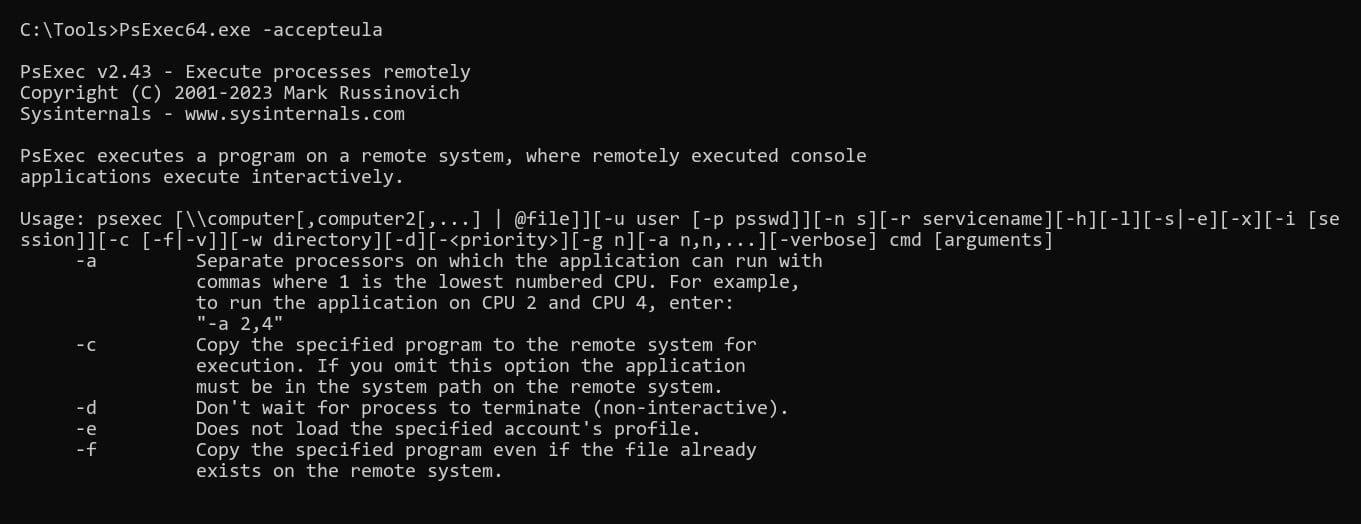
When to reach for it: a quick remote command on a PC that is not set up for PowerShell remoting, or a local shell running as System.
The catch: attackers use PsExec too, and Microsoft notes some antivirus products flag it for that reason. Expect your endpoint protection to alert on it, and prefer PowerShell remoting or your RMM tool for routine work.
Verdict: a sharp tool. Keep it in the kit, use it on purpose.
Sysinternals Tools at a Glance
| Tool | Use it when | Stays running |
|---|---|---|
| Autoruns | Slow boot, suspected malware, pop-ups that return | No |
| Process Monitor | Access denied or an app error with no detail | Only while capturing |
| TCPView | Unknown network connections | Only while open |
| Sysmon | You want a record of what ran, before an incident | Yes, as a service |
| BgInfo | Identifying servers and shared PCs at a glance | No |
| PsExec | One-off remote commands or a System shell | No |
Run them from an elevated prompt when you need to inspect system processes and services, and keep in mind that current releases of Process Monitor and Sysmon list support for Windows 11 and Windows Server 2019 or later.
Frequently Asked Questions
Are Sysinternals tools made by Microsoft, and are they safe to run?
Yes. Mark Russinovich created the Sysinternals site in 1996 to host his system utilities, and the license terms describe Sysinternals as a wholly owned subsidiary of Microsoft Corporation. The tools are published on Microsoft Learn and downloaded from download.sysinternals.com. Microsoft also offers them through Sysinternals Live and the Microsoft Store. Get them only from those official sources, never from a mirror or a random download site.
Do Sysinternals tools need to be installed?
Most do not. Each tool is a standalone executable that you unzip and run, so you can keep the Sysinternals Suite on a USB stick or a file share. Sysmon is the exception on this list: it installs a service and a driver so it can keep logging across reboots.
Can I use Sysinternals tools at my business?
The Sysinternals Software License Terms let you install and use any number of copies of the software on your devices. The same terms list what you may not do, including publishing the software for others to copy, renting or lending it, transferring it to a third party, or using it for commercial software hosting services. Read the full terms before you bundle the tools into anything you hand to customers.
How do I keep Sysinternals tools up to date?
Microsoft updates the tools individually, and the Sysinternals Suite page shows the date of the latest refresh. The Sysinternals Blog on Microsoft Tech Community posts a change feed of every tool update. For one-off use, Sysinternals Live lets you run a tool straight from the web without downloading it first: type live.sysinternals.com followed by the tool name in File Explorer, or use the tools share path from a command prompt.
\\live.sysinternals.com\tools\procmon64.exeWhat is the difference between Process Monitor and Process Explorer?
Process Explorer shows a live list of running processes in its top pane, and the bottom pane shows either the handles a selected process has open or the DLLs and memory-mapped files it has loaded. Its search answers the classic question of which program has a file locked. Process Monitor records activity over time instead: every file, registry, and process operation, which you filter after you reproduce a problem. Reach for Process Explorer to see the current state and Process Monitor to see what happened.
References
- Microsoft Learn: Sysinternals Suite
- Microsoft Learn: Autoruns for Windows
- Microsoft Learn: Process Monitor
- Microsoft Learn: TCPView
- Microsoft Learn: Sysmon
- Microsoft Learn: BgInfo
- Microsoft Learn: PsExec
Keep Reading
- 5 Best Free Windows Debloat Tools
- Windows LAPS Setup: Unique Admin Passwords on Every PC
- Ransomware Attack? What to Do in the First 4 Hours
Want a second set of eyes on a machine that is acting strange? Contact Rain City Techworks.