

You uninstalled a program. It's gone from the Start menu.
But it left behind folders in AppData, registry keys, scheduled tasks, startup entries, and random files scattered across your drive. Windows uninstaller doesn't clean those up. Bulk Crap Uninstaller does.
What Is Bulk Crap Uninstaller?
BCUninstaller is a free, open-source uninstaller that actually finishes the job. It runs the program's normal uninstaller, then scans for leftover files and folders, scans for leftover registry entries, and lets you remove them all.
It also finds "orphaned" programs. These are things that lost their uninstallers or never had one.
Download and Install
Grab it from the official site: https://www.bcuninstaller.com/
Also available on GitHub: https://github.com/Klocman/Bulk-Crap-Uninstaller
Install it or, to stay truly "crap free" use the portable version.
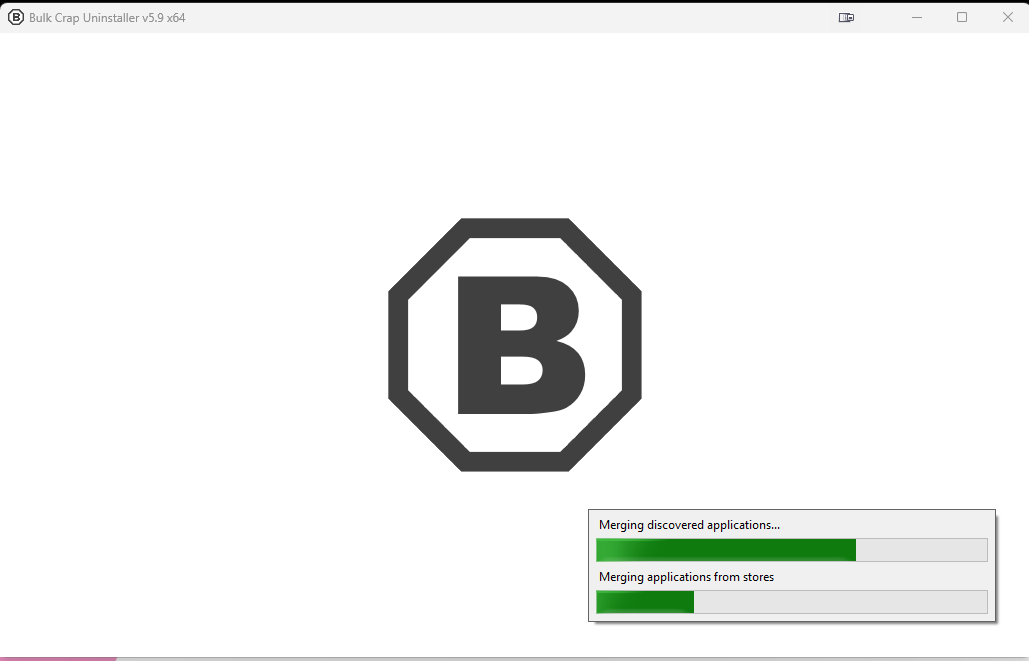
On first run, let it scan your system. This takes a minute but only happens once.
How to Uninstall Properly
Step 1: Select the Program
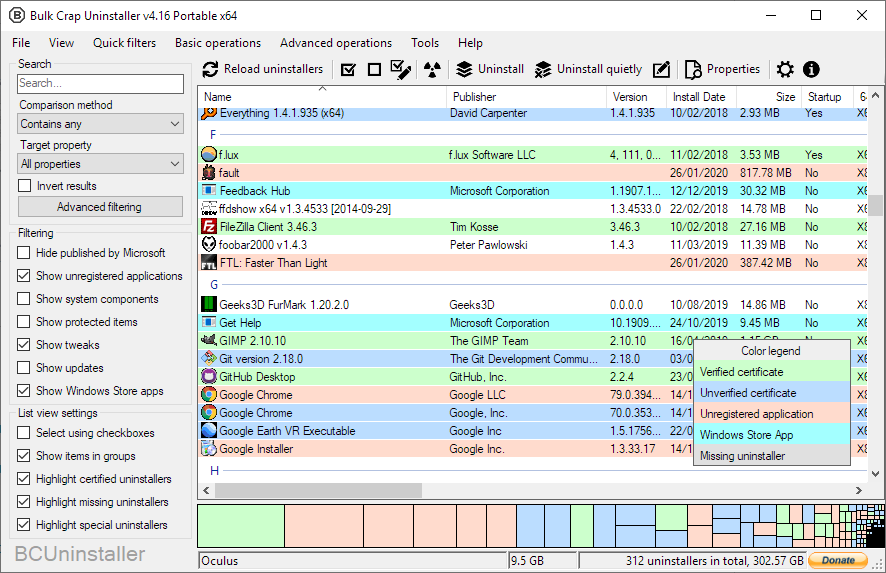
Find the program in the list. Use the search box if you've got a lot installed.
Step 2: Uninstall
Click "Uninstall" in the toolbar. BCUninstaller runs the program's normal uninstaller first.
Step 3: Scan for Leftovers
After the uninstaller finishes, BCUninstaller asks to scan for leftovers. Always say yes.
Step 4: Review and Remove
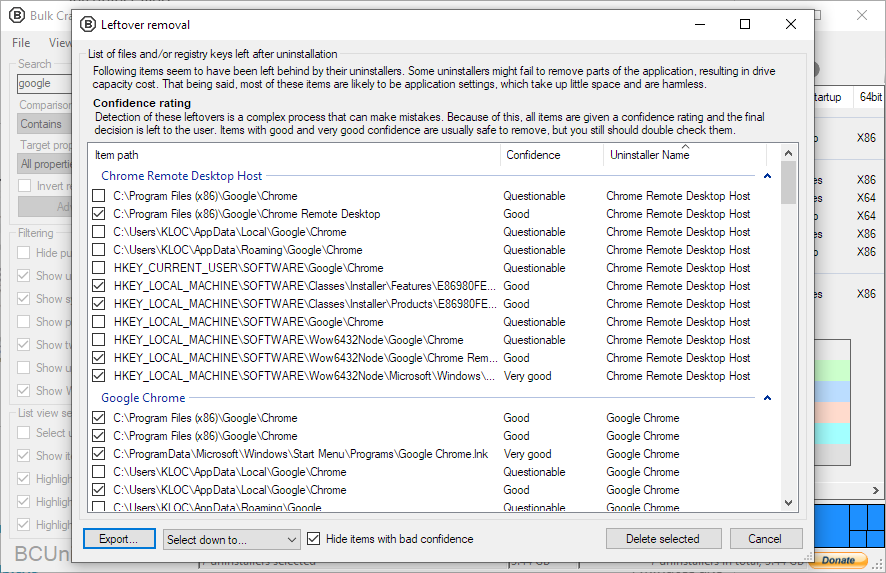
BCUninstaller shows what it found: leftover files and folders, registry entries, scheduled tasks, and startup entries.
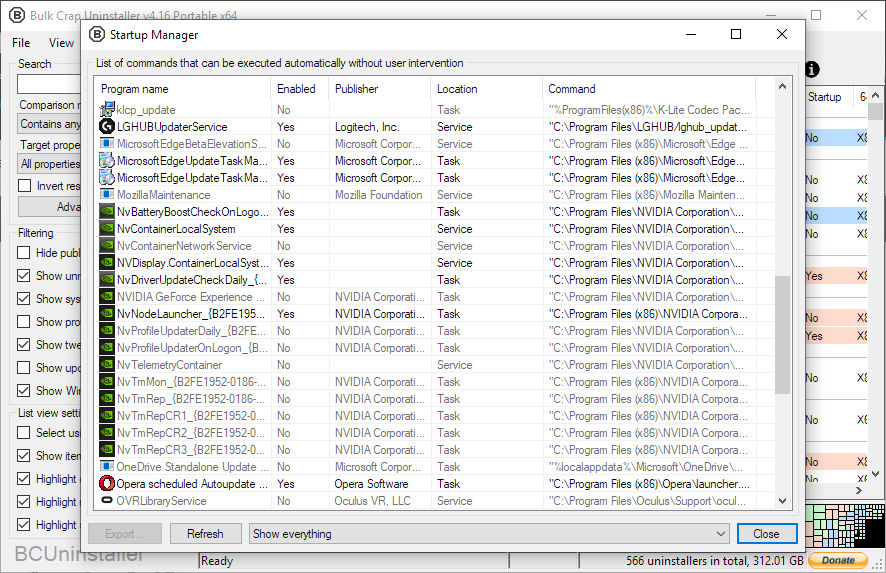
Review them. Usually safe to remove all. Click "Delete selected" and they're gone.
Batch Uninstalling
Need to remove multiple programs? BCUninstaller handles this well.
Select multiple programs with Ctrl+Click or Shift+Click, then click "Uninstall." BCUninstaller queues them up, runs uninstallers sequentially, and scans for leftovers from all of them at the end.
Great for cleaning up a bloated PC or prepping a computer for someone else.
Finding Orphaned Programs
Some programs never had an uninstaller, lost their uninstaller during a crash or bad update, or are portable apps you forgot about.
BCUninstaller finds these under "Invalid uninstaller" or as entries with missing data. It can still attempt removal by deleting the program folder and cleaning up registration.
Quiet Uninstall
Some uninstallers have silent modes. BCUninstaller can use these.
Right-click a program and select "Quiet Uninstall." No popups, no "Are you sure?" dialogs, no asking for feedback. The program just disappears.
Doesn't work for every program, but when it does, it's great.
Why Not Windows Uninstall?
| Feature | Windows | BCUninstaller |
|---|---|---|
| Run uninstaller | Yes | Yes |
| Find leftovers | No | Yes |
| Remove leftovers | No | Yes |
| Batch uninstall | No | Yes |
| Find orphans | No | Yes |
| Quiet mode | No | Yes |
| Open source | No | Yes |
Windows just runs the uninstaller. That's it. BCUninstaller finishes the job.
Tips Before You Start
Create a Restore Point First
Before major cleanup, create a restore point. Search "Create a restore point," click "Create," and name it. If something breaks, you can roll back.
Don't Remove Things You Don't Recognize
Some entries look like junk but are important. If you're not sure, Google it first.
Check Leftover Confidence
BCUninstaller rates leftovers by confidence. High confidence means safe to remove. Low confidence means verify first.
Check us out on

Techworks Blog