

Downloaded something you're not sure about? Instead of risking your real computer, test it in Windows Sandbox - a disposable virtual machine built into Windows.
Open it, run whatever you want, close it, everything disappears. Your real system is never touched.
What Is Windows Sandbox?
Windows Sandbox is a lightweight virtual machine that:
- Boots in about 15 seconds
- Runs a clean Windows installation
- Is completely isolated from your real system
- Deletes everything when you close it
Every time you open it, you get a fresh Windows. Every time you close it, it's wiped clean.
Requirements
Windows edition: Pro, Enterprise, or Education (not Home, sorry.)
Hardware:
- 64-bit CPU with virtualization support
- Virtualization enabled in BIOS/UEFI
- 4GB RAM minimum (8GB recommended)
- 1GB free disk space
Check virtualization: Open Task Manager → Performance → CPU → look for "Virtualization: Enabled"
How to Enable It
Windows Sandbox isn't enabled by default. Here's how to turn it on:
Step 1: Open Windows Features
Search "Turn Windows features on or off" and open it.
Step 2: Enable Windows Sandbox
Scroll down, check "Windows Sandbox", click OK.
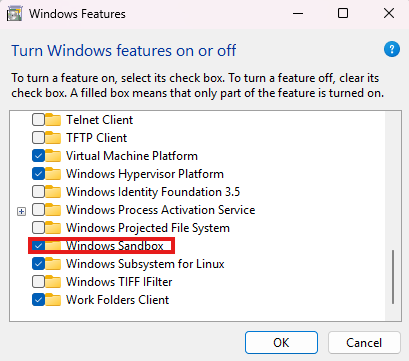
Or in PowerShell: Enable-WindowsOptionalFeature -Online -FeatureName "Containers-DisposableClientVM" -All
Step 3: Restart
Windows will ask to restart. Do it.
Step 4: Launch
After reboot, search "Windows Sandbox" in the Start menu. You're ready.
Using Windows Sandbox
Opening It
Launch from Start menu. A window opens with a fresh Windows desktop:
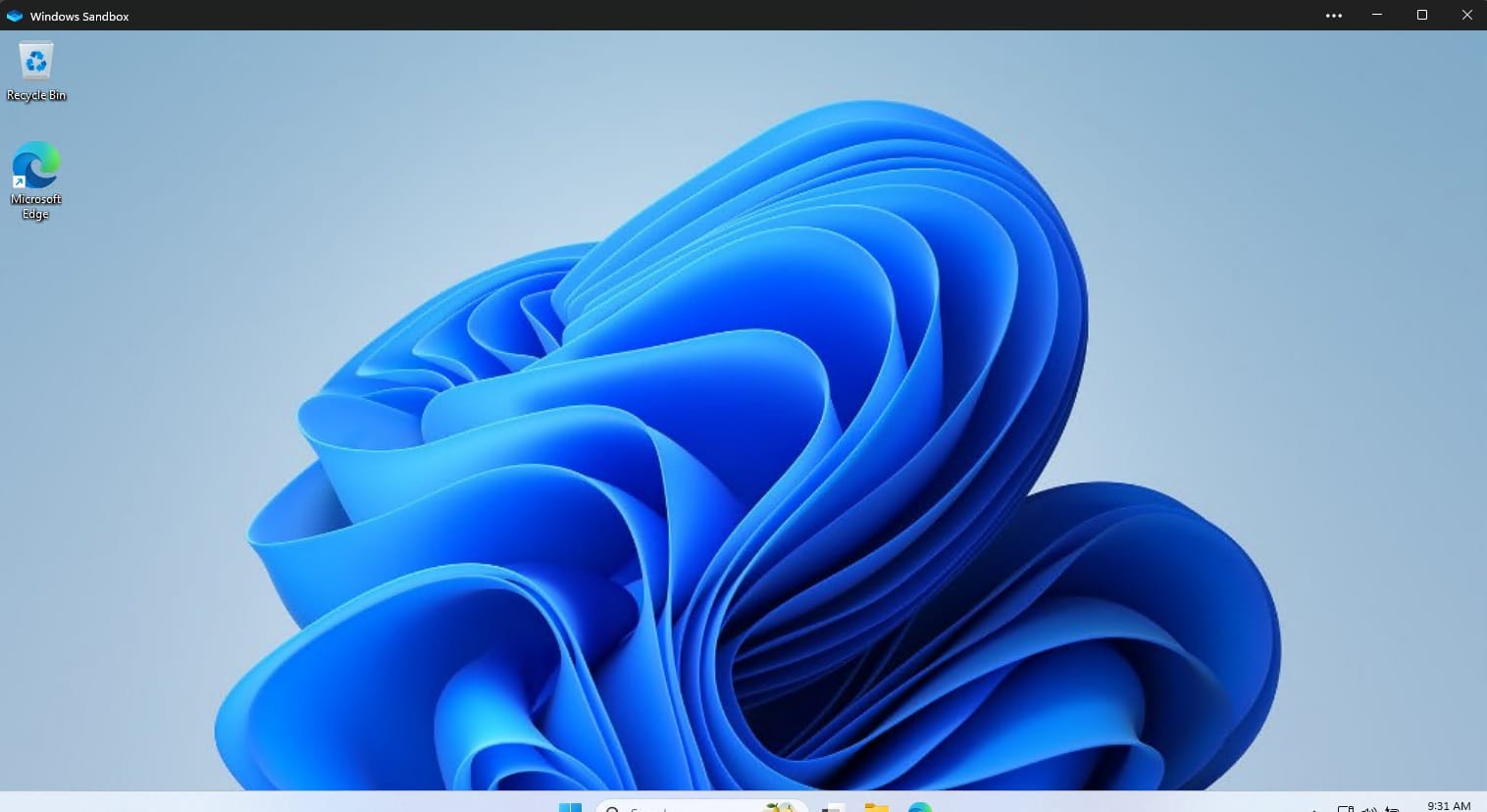
This is a separate Windows installation. Nothing you do here affects your real computer.
Getting Files In
To test a suspicious file:
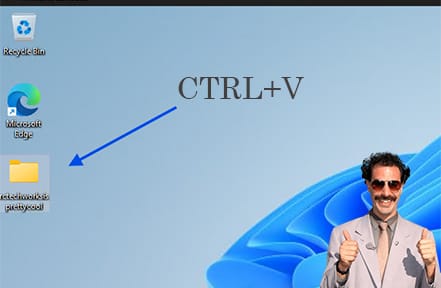
- Copy the file on your real computer (Ctrl+C)
- Click inside the Sandbox window
- Paste (Ctrl+V)
The file is now in the Sandbox. Run it there.
!
Testing the File
Double-click to run. Install it if it's an installer. Use the software. See what it does.
If it's malware, it's trapped in the Sandbox. Your real system is safe.
Closing (Destroying Everything)
When you're done, click the X to close Windows Sandbox.
You'll get a warning that everything will be deleted. That's the point. Click "OK."
The Sandbox and everything in it is completely destroyed. Next time you open it, it's a fresh Windows again.
Use Cases
Suspicious Downloads
Downloaded something from a sketchy site? Test it in Sandbox first.
Unknown Email Attachments
Attachment looks suspicious but you need to open it? Sandbox.
Testing Installers
Want to see what an installer does without committing? Run it in Sandbox.
Throwaway Browser Session
Need to visit a suspicious link? Open a browser in Sandbox. Close when done. No cookies, no history, no tracking.
Old/Incompatible Software
Some old software doesn't play nice with your main system. Try it in Sandbox first.
What About Windows Home?
Windows Sandbox requires Pro or higher. If you have Windows Home, try Sandboxie Plus:
Website: https://sandboxie-plus.com/
It's open source and works on all Windows editions. More complex to configure, but similar concept.
Limitations
No Persistence
Everything is deleted when you close Sandbox. Can't save state for later.
Resource Usage
Sandbox uses RAM and CPU. On low-end systems, it might be sluggish.
No GPU Acceleration
Graphics-intensive applications won't perform well.
Network is Shared
Sandbox has internet access through your network. If you're testing potential malware, consider disconnecting from internet first.
Configuration
You can customize Sandbox with a .wsb file:
- Disable networking
- Map folders from real system
- Run startup commands
Create a text file with .wsb extension:
<Configuration>
  <Networking>Disable</Networking>
</Configuration>
Double-click to launch Sandbox with those settings.
Check out our pre-config'd testing sandbox on Github: https://github.com/RC-Techworks/windows-debug-sandbox
Techworks Blog