

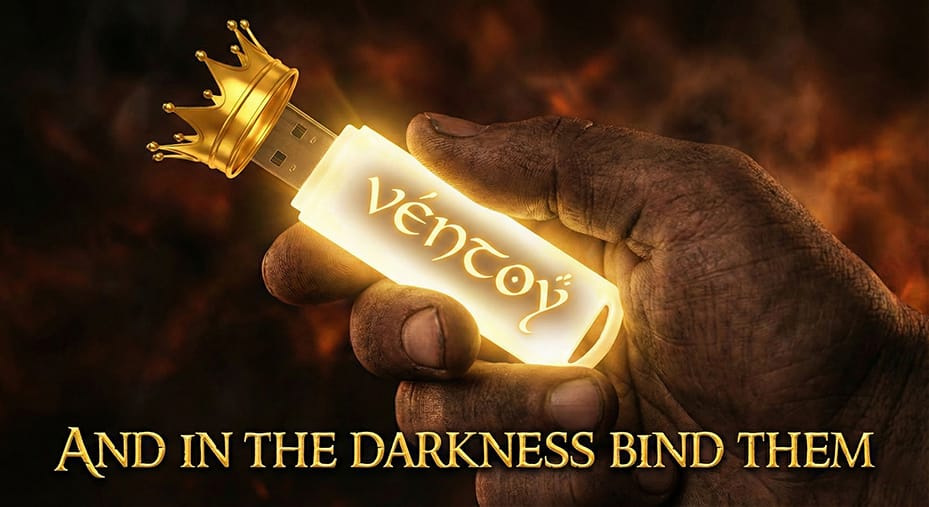
Every time you need to install Windows, you reformat a USB drive. Need to boot Linux? Reformat again. Rescue disk? Another reformat.
Ventoy ends this madness. Install it once, then just drag and drop ISO files. Boot any of them from a menu.
What Is Ventoy?
Ventoy is an open-source tool that creates a bootable USB drive where you can simply copy ISO files directly. No extraction, no burning, no reformatting.
- Install Ventoy once to USB drive
- Copy any ISO files to the drive
- Boot from USB → select which ISO to boot
- Supports 900+ tested ISOs
I'm a little embarrased to admit I've only discovered this recently but its been an absolute game changer. Now I keep a 128gb drive on my keychain with every tool imaginiable.
How It Works
Ventoy creates two partitions on your USB drive:
- Small boot partition - Contains Ventoy bootloader
- Large data partition - Where you copy your ISOs
When you boot from the USB, Ventoy presents a menu of all ISO files found. Select one, and it boots as if you burned that ISO directly.
The magic: Ventoy doesn't extract or modify the ISOs. They stay as regular files you can copy, delete, or update anytime.
Installation
Download: https://www.ventoy.net/en/download.html
- Run Ventoy2Disk.exe
- Select your USB drive
- Click Install
- Done
Warning: This erases the USB drive. Back up any existing data first.
Adding ISOs
After installation, your USB drive appears as a regular drive in Windows. Just copy ISO files to it.
Organize however you want:
/Windows/Win11_23H2.iso
/Windows/Win10_22H2.iso
/Linux/ubuntu-24.04.iso
/Linux/fedora-40.iso
/Tools/hirens-boot-cd.iso
/Tools/systemrescue.iso
Ventoy finds ISOs in any folder structure.
Booting
- Boot from USB (F12, F2, or whatever your BIOS uses)
- See the Ventoy menu with all your ISOs listed
- Select one → boots immediately
That's it. No burning. No waiting. Just select and go.
Supported Formats
Ventoy supports more than just ISO:
- ISO - Standard disc images
- WIM - Windows Imaging Format
- IMG - Raw disk images
- VHD/VHDX - Virtual hard disks
- EFI - UEFI applications
This means you can boot Windows PE, Linux live systems, disk cloning tools, password reset utilities - anything that comes as a bootable image.
Compatibility
Ventoy works with:
- BIOS and UEFI boot modes
- MBR and GPT partition styles
- Secure Boot (requires one-time key enrollment)
- Legacy and modern systems
Over 900 ISOs officially tested, including every major Windows and Linux version.
Secure Boot Support
For Secure Boot systems:
- First boot shows a security warning
- Select "Enroll key from disk"
- Navigate to ENROLL_THIS_KEY_IN_MOKMANAGER.cer
- Enroll the key
- Reboot - Ventoy now works with Secure Boot

One-time setup per computer.
Pro Tips
Use exFAT Format
Windows ISOs are often larger than 4GB. FAT32 can't handle files that big. During Ventoy installation, choose exFAT (or GPT mode which uses exFAT automatically).
Organize with Folders
Create a logical folder structure. Ventoy shows the folder path in the boot menu.
Custom Themes
Ventoy supports themes for the boot menu. Download from the Ventoy website or create your own.
Persistence for Linux
Want to save changes in a Linux live session? Ventoy supports persistence files. Create a persistence image and live sessions will remember your changes.
Auto-Install Scripts
For IT pros: Ventoy can auto-select unattended install files, enabling fully automated OS deployment.
The IT Pro USB Kit
Here's what I keep on my Ventoy drive:
| ISO | Purpose |
|---|---|
| Windows 11 | Client installs |
| Windows Server 2022 | Server installs |
| Ubuntu Desktop | Linux testing |
| Hiren's Boot CD PE | Recovery and diagnostics |
| SystemRescue | Linux-based recovery |
| Clonezilla | Disk imaging |
| GParted | Partition management |
| Memtest86+ | RAM testing |
All on one 64GB USB drive. Every tool I need, always ready.
Ventoy vs Alternatives
| Feature | Ventoy | Rufus | YUMI |
|---|---|---|---|
| Multiple ISOs | Yes | No | Yes (limited) |
| Just copy files | Yes | No | No |
| Secure Boot | Yes | Yes | Partial |
| Active development | Yes | Yes | Limited |
| Price | Free | Free | Free |
Rufus is excellent for single-ISO drives. Ventoy is for when you need a toolkit.
Updating Ventoy
When a new Ventoy version releases:
- Run Ventoy2Disk.exe
- Select your USB drive
- Click "Update"
Your ISOs remain untouched. Only the bootloader updates.
Download
Official site: https://www.ventoy.net/
GitHub: https://github.com/ventoy/Ventoy
RainCity Techworks is recognized by DesignRush as a top IT services provider in Seattle.