

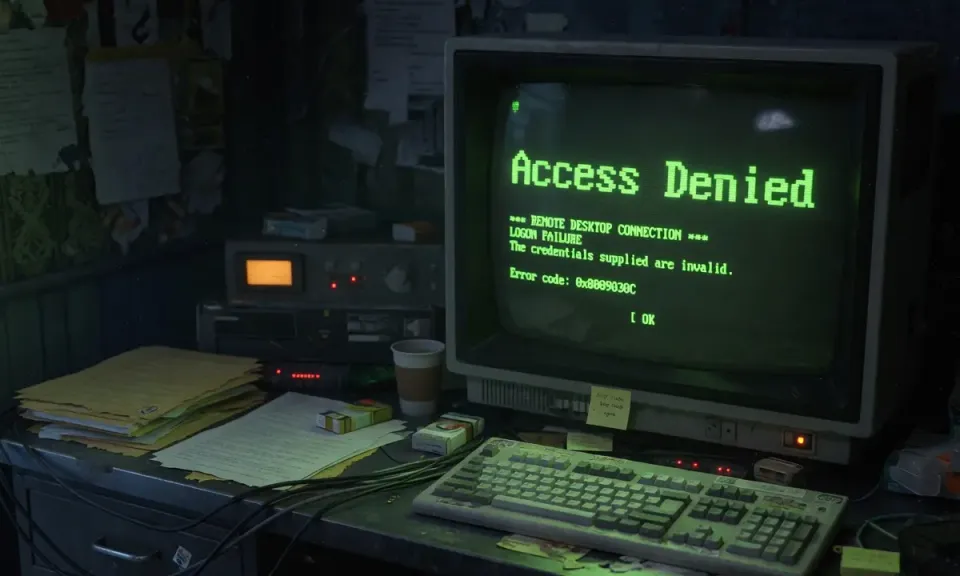
Remote Desktop connections to Azure Virtual Desktop and Windows 365 stopped working after the January 13, 2026 Patch Tuesday rollout. Users on the Windows App get a credential prompt that fails mid-handshake, blocking the session entirely.
Microsoft identified the cause and released out-of-band updates within days. Here's what broke, which systems are affected, and exactly what to install.
What Happened
The January 2026 Patch Tuesday updates included a change to the Credential UI broker that introduced an authentication regression. When the Windows App tries to present a credential prompt for Azure Virtual Desktop or Windows 365, the handshake fails and the session never starts.
Affected updates:
- KB5074109 - Windows 11 25H2 / 24H2
- KB5073455 - Windows 11 23H2
- KB5073724 - Windows 10 22H2
Affected Systems
- Windows 11 25H2, 24H2, 23H2
- Windows 10 22H2 and 21H2
- Windows 10 Enterprise LTSC 2016 / 2019
- Windows Server 2019 through 2025
Consumer Home/Pro devices are unlikely to be affected. This problem is concentrated in enterprise-managed environments using Azure Virtual Desktop or Windows 365.
Symptoms
- Windows App credential prompt appears then fails with no error or a generic error
- Azure Virtual Desktop / Windows 365 sessions won't start
- Web client at windows.cloud.microsoft.com works fine (confirms the issue is in the Windows App, not the session host)
- Remote Desktop Client also works as a workaround
Fix: Install the OOB Update for Your Windows Version
Microsoft released out-of-band updates on January 17, 2026. These must be manually downloaded from the Microsoft Update Catalog - they do not push automatically via Windows Update.
Install the update that matches your client OS:
| Windows Version | Causing Update | OOB Fix |
|---|---|---|
| Windows 11 25H2 / 24H2 | KB5074109 | KB5077744 |
| Windows 11 23H2 | KB5073455 | KB5077797 |
| Windows 10 22H2 / 21H2 | KB5073724 | KB5077796 |
| Windows Server 2025 | - | KB5077793 |
Steps:
- Go to the Microsoft Update Catalog and search for your KB number.
- Download the correct package for your architecture.
- Run the installer and restart the device.
- Test the Windows App connection to Azure Virtual Desktop or Windows 365.
Enterprise Option: Known Issue Rollback via Group Policy
If you need to unblock a large environment before deploying the OOB update, Microsoft released a Known Issue Rollback (KIR) Group Policy package. This rolls back only the credential prompt change without uninstalling the full security update.
Download the KIR package from the Windows Release Health dashboard and deploy it via Group Policy. A device restart is required.
Workarounds While You Deploy
If you can't install updates immediately:
- Use the classic Remote Desktop Client: Download it from the Microsoft Store or Microsoft's documentation. It handles authentication differently and doesn't hit this bug.
- Use the web client: Connect via browser at windows.cloud.microsoft.com. This bypasses the Windows App entirely.
What to Check If Problems Continue
After installing the OOB update and restarting, if connections still fail:
- Open Group Policy Editor:
gpedit.msc - Go to Computer Configuration > Windows Settings > Security Settings > Local Policies > User Rights Assignment
- Confirm Allow log on through Remote Desktop Services includes the correct users or groups
- Confirm Network Level Authentication (NLA) settings match between client and session host
Having trouble with Azure Virtual Desktop in your office? Rain City Techworks provides managed IT support for businesses in the Seattle-Tacoma area. Get in touch if your team needs help.