

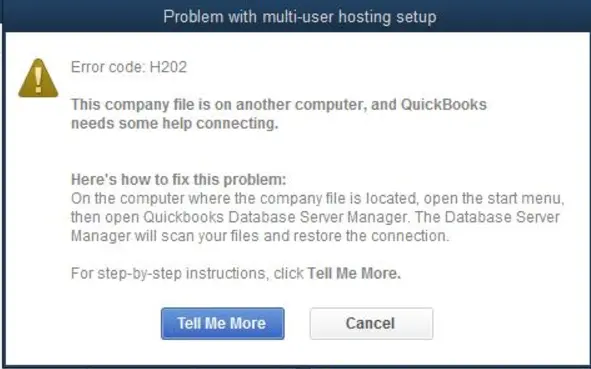
Your QuickBooks multi-user or integration sync is failing with errors like H202, H505, or "QuickBooks is not in Multi-User Mode." These errors block workstations and connected apps from accessing the company file.
The Fix
Start with the most common fix. If the issue persists, proceed to the next method.
Method 1: Configure Hosting and Database Server Manager
On the server computer hosting the company file (.QBW), ensure multi-user hosting is correctly set.
1. Open QuickBooks on the server. Go to File > Utilities. If you see "Host Multi-User Access," select it. If you see "Stop Hosting Multi-User Access," hosting is already enabled.
2. Open the QuickBooks Database Server Manager (from the Start menu). Go to the "Scan Folders" tab. Verify the folder containing your company file is listed. If not, click "Add Folder," select it, then click "Scan."
If That Doesn't Work:
Method 2: Check Firewall Rules
Windows Firewall often blocks the necessary ports. Open these TCP ports on the server: 8019, 56728, and 55378-55382. You can use the Windows Defender Firewall GUI or PowerShell.
New-NetFirewallRule -DisplayName "QuickBooks TCP Ports" -Direction Inbound -Protocol TCP -LocalPort 8019,56728,55378-55382 -Action AllowIf That Doesn't Work:
Method 3: Verify Folder Permissions
The QuickBooksDB service and all users need read/write access to the folder containing the company file. Grant 'Everyone' Modify permissions for troubleshooting (tighten later).
$acl = Get-Acl "C:\YourCompanyFileFolder"
$rule = New-Object System.Security.AccessControl.FileSystemAccessRule("Everyone","Modify","ContainerInherit, ObjectInherit","None","Allow")
$acl.SetAccessRule($rule)
Set-Acl "C:\YourCompanyFileFolder" $acl
If That Doesn't Work:
Method 4: Restart QuickBooks Services
Ensure critical services are running. Find and restart these services in services.msc:
QBCFMonitorServiceQuickBooksDBXX(where XX is your version year, e.g.,QuickBooksDB26for QB 2022)
Use PowerShell to check and start them:
Get-Service -Name "QBCFMonitorService", "QuickBooksDB*"
Start-Service -Name "QBCFMonitorService"
Start-Service -Name "QuickBooksDB26" # Replace with your version
If That Doesn't Work:
Method 5: Use UNC Paths and Check DNS
Workstations must open the file via a UNC path (e.g., \\ServerName\Share\file.qbw), not a mapped drive letter (e.g., Z:\file.qbw). Test basic connectivity from a workstation.
ping YourServerName
nslookup YourServerName
If ping by name fails but ping by IP works, you have a DNS resolution issue. Use the UNC path with the server's IP address as a temporary workaround (e.g., \\192.168.1.10\Share\file.qbw).
For Integration Sync Failures:
If a third-party app (e.g., Jobber, Connex) fails to sync, verify the QuickBooks user account used for the integration is active in Company > Users > Set Up Users and Roles. You may need to re-authorize the connection within the integration app itself.
Verify
After applying the fix:
1. On the server, confirm the QuickBooks Database Server Manager shows a green checkmark for the company file folder.
2. From a workstation, open QuickBooks and use File > Open or Restore Company to open the file via its UNC path.
3. Have a second user on another workstation open the same file simultaneously. If both can access it, multi-user mode is working.
4. For integrations, run a manual sync from the connected application.
If problems persist, run the QuickBooks File Doctor from the QuickBooks Tool Hub.
Need More Help?
See our guides on fixing printer errors or common Outlook failures. Find more PowerShell scripts and Windows fixes on our blog.
For businesses in Seattle or Tacoma needing expert Windows support, our team at RainCity Techworks can help. Contact us about our managed IT services.