

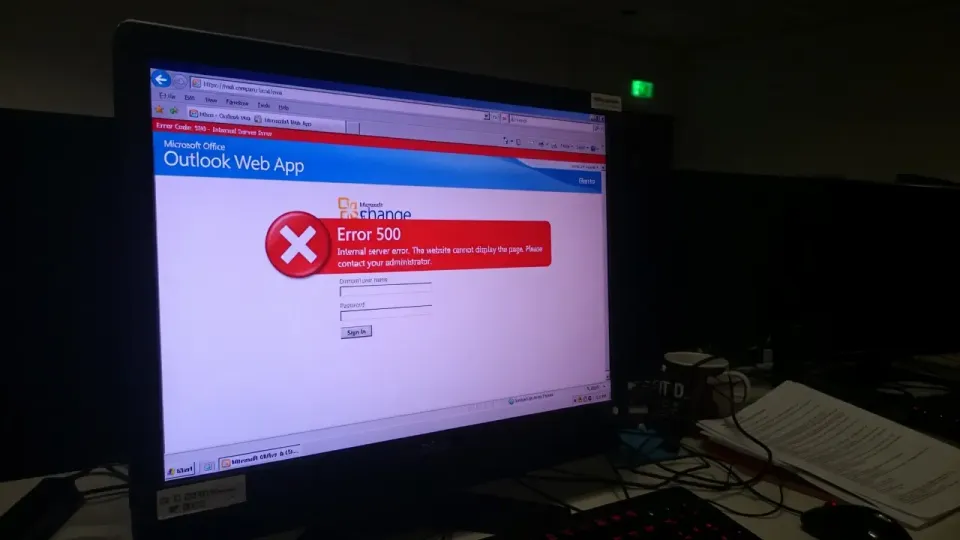
When you click "Open another mailbox" in Outlook Web App, OWA gets stuck in an authentication loop and never loads the shared mailbox. Instead you get an HTTP 500 error with a redirect limit message.
The error text:
Something went wrong. Your request couldn't be completed. HTTP 500. The redirect limit has been reached. An error occurred when you tried to access your mailbox because a server with information about you and your mailbox couldn't be found.
Affects Edge and Chrome on Windows and macOS.
Quick Fix
Skip the "Open another mailbox" menu entirely. Access the shared mailbox directly via URL:
https://outlook.office.com/mail/shared_mailbox_address@yourdomain.com/
Replace the placeholder with the actual shared mailbox address. This bypasses the redirect loop immediately.
What Causes This
When OWA tries to open another mailbox, it needs to validate a CSRF token and initialize a UserContext cookie for that secondary session. If the session cookie is stale or the Exchange Online backend cannot match the token to a valid mailbox context, it retries indefinitely, causing the redirect loop. Clearing the cookies for the affected domains breaks the cycle. A related Outlook desktop crash pattern is covered in fix Outlook error 0xc0000409, but this issue is specific to the OWA web auth flow.
Step-by-Step Fixes
Fix 1: Clear OWA Session Cookies
Corrupted UserContext cookies from a previous session keep the loop alive even after Microsoft deploys the fix.
- Open browser settings and search for Cookies and site data.
- Find and delete all entries for
outlook.office.comandlogin.microsoftonline.com. - Restart the browser and sign in via an InPrivate or Incognito window.
- Navigate directly to the shared mailbox URL instead of using the Open another mailbox menu.
Fix 2: Re-sync Mailbox Permissions via PowerShell
For admins, removing and re-adding access forces a metadata sync between Exchange Online and the OWA interface. Run this in the Exchange Online Management module:
# Remove existing full access
Remove-MailboxPermission -Identity 'SharedMailbox' -User 'AffectedUser' -AccessRights FullAccess

# Re-add to trigger metadata sync
Add-MailboxPermission -Identity 'SharedMailbox' -User 'AffectedUser' -AccessRights FullAccess -InheritanceType All
Wait 5 minutes for replication, then have the user test access.
Fix 3: Toggle Automapping in Admin Center
If you prefer the GUI approach:
- Open Microsoft 365 Admin Center and go to Active teams and groups > Shared mailboxes.
- Select the affected shared mailbox.
- Under Mailbox delegation, click Edit on Read and manage.
- Remove the affected user and save.
- Wait 5 minutes, then add them back.
Toggling automapping clears the stale delegation metadata without touching PowerShell.
Related Posts
- Fix Exchange Online Blocking Outlook Mobile
- Fix Microsoft 365 "Something Went Wrong" Error
- Fix Outlook Error 1001 WAM Broker Auth
Need help with Microsoft 365 or Exchange Online issues? Contact Rain City Techworks.