

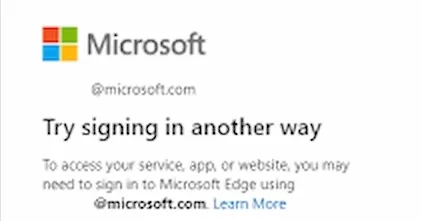
Microsoft 365 registration and sign-in errors stop users from activating apps or using cloud features. These issues happen on Windows 10, Windows 11, and current versions of Microsoft 365 Apps like Office 2019 and 2021.
Error during Microsoft 365 registration/sign-in
Why This Error Happens
Sign-in failures occur when the connection between Windows and Microsoft 365 fails. This is often due to corrupted tokens in the Web Account Manager (WAM) or old entries in the Windows Credential Manager. Mismatched accounts or specific registry keys can also block the registration.
Step 1: Clear Cached Credentials
Corrupted entries in the Windows Vault can cause sign-in loops.
- Open the Control Panel.
- Go to User Accounts and select Credential Manager.
- Click Windows Credentials.
- Scroll down to the Generic Credentials section.
- Find entries that start with
MicrosoftOffice16_Data:orgidormso. - Expand these entries and click Remove.
- Restart your computer.
Step 2: Disconnect Work or School Accounts
Conflicting identities sometimes block new registrations. An old connection in Windows Settings might cause issues even if you use the right account.
- Open Settings.
- Go to Accounts and click Access work or school.
- Find the account you want to use for Microsoft 365.
- Click the account and select Disconnect.
- Restart your computer and try to sign in through Word or Excel.
Step 3: Delete Identity Token Files
If clearing credentials does not fix the problem, you can delete cached tokens manually.
- Close all Office applications.
- Open File Explorer and paste this path into the address bar:
%LOCALAPPDATA%\Packages\Microsoft.Windows.CloudExperienceHost_cw5n1h2txyewy\AC\TokenBroker\Accounts - Delete every file in this folder.
- Restart the system so Windows can create a new token.
Step 4: Apply Registry Fixes for Activation
If the sign-in prompt closes or fails immediately, a registry change can fix cryptographic blocks.
- Press
Win + R, typeregedit, and press Enter. - Go to:
HKEY_LOCAL_MACHINE\Software\Microsoft\Cryptography\Protect\Providers\df9d8cd0-1501-11d1-8c7a-00c04fc297eb - Right-click the right pane, select New > DWORD (32-bit) Value.
- Name it
ProtectionPolicyand set the value to 1. - Go to:
HKEY_CURRENT_USER\Software\Microsoft\Office\16.0\Common - Create a new DWORD (32-bit) Value named
Autoorgidgetkeyand set the value to 1. - Restart your machine.
These registry changes apply Windows fixes to how Office handles authentication.
Step 5: Run an Online Repair
If local app files are broken, a repair can fix the registration modules.
- Right-click the Start button and click Apps and Features.
- Find Microsoft 365 or Office in the list.
- Select Modify.
- Choose Online Repair and follow the instructions. This is more thorough than a Quick Repair because it re-registers identity components.
If you have similar problems with mail, fix Outlook error 0xc0000409 to stabilize your profile.
Step 6: Clear the ClickToRun Update Cache
Corrupt update files can block the activation process.
- Open File Explorer and go to:
C:\Program Files\Common Files\Microsoft Shared\ClickToRun - Delete all files in this folder. You may need administrator rights.
- Restart the computer.
Step 7: Sign Out and Sign Back In
Try this if the software is still stuck on "licensed to another user" or "unlicensed product":
- Open Word or Excel.
- Go to File and then Account.
- In the User Information section, click Sign Out for every account listed.
- Restart the app and sign in with your primary Microsoft 365 account.
Step 8: Check TLS 1.2 on Older Systems
If you use Windows 7 SP1, Windows 8.1, or Windows Server 2012, make sure TLS 1.2 is active. Microsoft 365 Apps do not support TLS 1.0 or 1.1 for activation. Install all Windows Updates, as they contain the root certificates needed for modern logins.
Step 9: Use the Support and Recovery Assistant
The Microsoft Support and Recovery Assistant (SaRA) tool automates these steps. Download it from the Microsoft site, select Office & Office Apps, and choose the option for being unable to activate Office. This tool runs scripts to reset the activation state. It is often faster than running PowerShell scripts yourself.
Need hands-on help? Contact our team.
Related reading: