

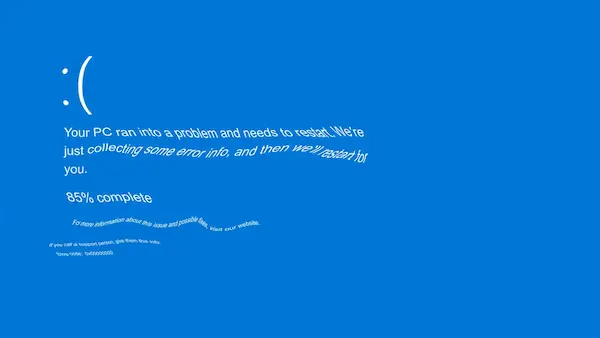
Your machine patches overnight and wakes up dead. Blue screen, stop code KMODE_EXCEPTION_NOT_HANDLED, and now you're staring at a boot loop. This one showed up hard after the March 2026 Windows updates, and it's almost always a driver conflict.
Here's what's happening and how to fix it.
What This Stop Code Means
KMODE_EXCEPTION_NOT_HANDLED means kernel-mode code threw an exception that nothing caught. In plain terms: a driver did something illegal and Windows couldn't recover. The March update touched kernel interfaces that some older drivers weren't ready for. Network adapters, Bluetooth, and GPU drivers are the usual suspects, specifically Realtek audio/network drivers, Intel WiFi 6/6E drivers, and NVIDIA drivers on certain GPU generations.
Step 1: Get Into Safe Mode
If you're stuck in a boot loop, you need Safe Mode first. Windows should offer recovery options automatically after two or three failed boots. If it doesn't, hold the power button during startup to force it.
From the recovery screen: Troubleshoot, Advanced Options, Startup Settings, Restart. Press 4 for Safe Mode or 5 for Safe Mode with Networking.
Once you're in, everything else becomes possible.
Step 2: Check What Actually Crashed
Before touching anything, look at the crash dump. Open Event Viewer (Win+R, type eventvwr) and go to Windows Logs, then System. Sort by level and look for Critical entries around the time it crashed. You're looking for a specific driver filename, something like e1d68x64.sys (Intel network) or nvlddmkm.sys (NVIDIA) or rtwlane.sys (Realtek WiFi).
That filename tells you exactly which driver to fix.
Step 3: Roll Back or Update the Offending Driver
Open Device Manager (Win+X, Device Manager). Right-click the device tied to your problematic driver. Properties, Driver tab.
If "Roll Back Driver" is available, use it. That reverts to whatever driver was installed before the Windows update ran.
If rollback is greyed out, you'll need to update manually. Go to the manufacturer's site directly:
- Realtek: realtek.com/en/downloads
- Intel WiFi: intel.com/content/www/us/en/download-center/home.html
- NVIDIA: nvidia.com/drivers
Download the latest driver, install it in Safe Mode, reboot.
Step 4: Disable Fast Startup
Fast Startup leaves drivers in a half-initialized state between boots. After a major update, this causes conflicts that look random but aren't. Turn it off.
Control Panel, Power Options, "Choose what the power buttons do," then uncheck "Turn on fast startup." Apply.
This alone fixes it for a surprising number of people.
Step 5: Run SFC and DISM
The update may have left system files in a bad state. Run these from an elevated command prompt:
DISM /Online /Cleanup-Image /RestoreHealth
Wait for that to finish, then:
sfc /scannow
Reboot when done. SFC will fix corrupted Windows files that DISM can't touch, and DISM pulls fresh copies from Windows Update to repair things SFC needs.
Step 6: Uninstall the Update
If nothing above works, pull the update itself. This is your last resort, not your first move.
Settings, Windows Update, Update History, Uninstall Updates. Find the March 2026 cumulative update (sorted by date makes this easy), right-click, uninstall.
Windows will restart and revert that update. Your system should boot clean again. You can stay unpatched temporarily, but make sure to install the update once the driver issue is resolved, either by getting a newer driver first or waiting for a hotfix.
The Intermittent Version
Some machines don't crash immediately. They run fine for an hour, then BSOD. Or they crash only under load. That pattern almost always points to GPU or network drivers. The kernel change in this update affects how drivers handle interrupt requests, and drivers that are marginal under normal conditions fall apart under load after the update.
Same fix process applies. Check Event Viewer for the driver filename first.
Related Posts
- The Disposable Desktop: Windows Sandbox Explained
- One USB Drive to Rule Them All: Multiboot with Ventoy
Need help recovering a machine after a bad update? Contact Rain City Techworks.