

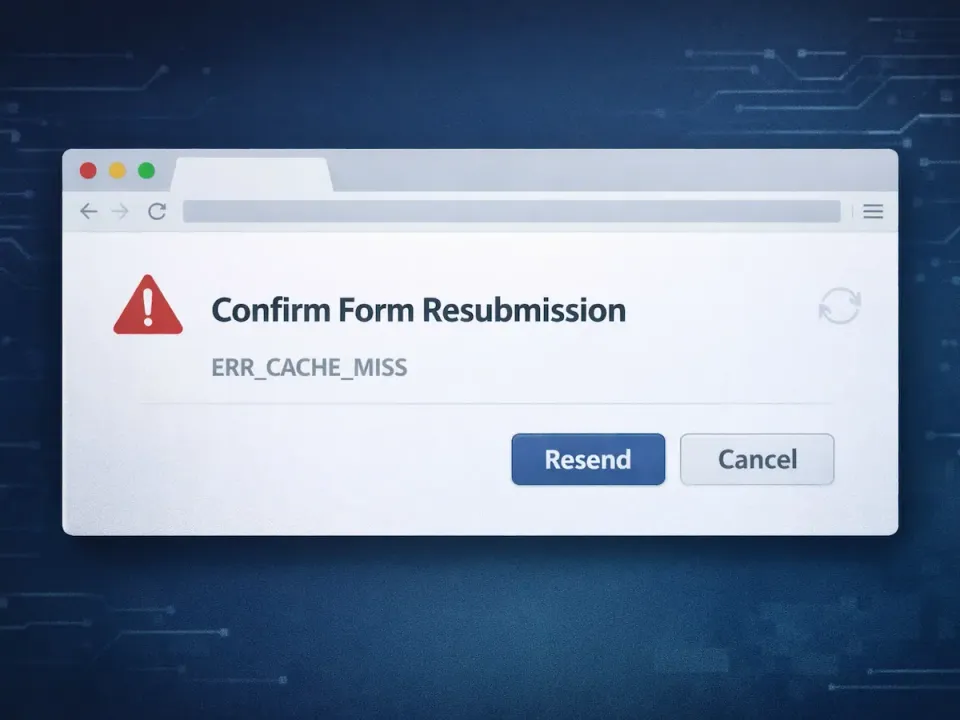
Google Chrome 125 and 126 users on Windows 10, Windows 11, and Server 2022 hit a wall on forms in ERP and CRM apps. The renderer crashes with "Aw, Snap!" or the back button throws a "Confirm Form Resubmission" dialog with ERR_CACHE_MISS. The error text:
Confirm Form Resubmission. This page requires data that you entered earlier in order to be properly displayed. You can send that data again, but that will cause the page to repeat any action it took previously. Press Reload to resubmit that data and display the page. ERR_CACHE_MISS
Quick Fix
Update Chrome to 126.0.6478.61 or later. This is the official Chromium patch for the POST-cache regression in 125.
- Click the three-dot menu in the top right.
- Go to Help > About Google Chrome.
- Chrome checks for and installs the update.
- Click Relaunch.
Verify the new version via Chrome releases or the official Chrome update guide.
What Causes This
Chrome 125 shipped a change in how the renderer caches POST request bodies against Cache-Control: no-store headers. When the user hits back or a session revalidation re-fires the form, the renderer asks for cached form data that was never written. The process crashes or surfaces ERR_CACHE_MISS. SSL-intercepting endpoint agents and legacy NTLM-authenticated line-of-business apps make the crash more frequent because they stall session reuse.
If The Update Did Not Land
Locked to an older build by policy or a pending WSUS push? These workarounds keep users moving until the patch deploys.
Flush DNS and Chrome's Socket Pools
Clear-DnsClientCache
ipconfig /flushdns
Then inside Chrome, open chrome://net-internals/#sockets and click Flush socket pools. This clears stale keepalives that the renderer uses for form POST retries.
Disable Hardware Acceleration via Registry
Renderer crashes on forms with embedded video or iframes often trace back to GPU process teardown. Turn off hardware acceleration machine-wide:
New-Item -Path 'HKLM:\SOFTWARE\Policies\Google\Chrome' -Force | Out-Null
New-ItemProperty -Path 'HKLM:\SOFTWARE\Policies\Google\Chrome' -Name 'HardwareAccelerationModeEnabled' -Value 0 -PropertyType DWord -Force
Reopen Chrome. GPU preview at chrome://gpu should now show Hardware accelerated: disabled.
Kill Background Apps on Close
Chrome leaves an orphan process hanging on to the socket cache. In Settings > System, turn off Continue running background apps when Google Chrome is closed. Task Manager should show no chrome.exe entries after closing the window.
Prevent It From Happening Again
Pin Chrome updates to the latest stable channel in your RMM or Intune policy. Allow chromereleases.googleblog.com in the firewall so the browser's update service actually reaches the CDN. Audit any TLS-intercepting security appliance for CRL or OCSP checks that are delaying session revalidation, as those amplify the crash.
Related Posts
- Fix Windows 11 24H2 Wi-Fi Keeps Dropping
- Fix Outlook Error 0x800CCC0E with Gmail and Yahoo
- 5 Best Windows Debloat and Cleanup Tools
Need help with Chrome browser issues breaking business apps? Contact Rain City Techworks.