

Quick links: Official download | How to run it | Feature walkthrough | What changes | Verdict
The Problem with Fresh Windows Installs
You just installed Windows 11 and you're greeted with... Candy Crush. Xbox apps you'll never use. Telemetry phoning home. Cortana trying to be helpful.
For IT admins deploying workstations or anyone who wants a clean, fast Windows experience, the first hour is usually spent removing junk and configuring settings. There's a better way.
What Is the Chris Titus Tech Windows Toolbox?
The Windows Toolbox (or "winutil") is a free, open-source PowerShell utility created by Chris Titus, a well-known tech YouTuber with over 2 million subscribers.
It's a single command that launches a GUI tool letting you:
- Debloat Windows - Remove pre-installed apps and telemetry
- Install apps in bulk - Like Ninite, but using Winget
- Tweak settings - Performance, privacy, and UI customizations
- Access hidden settings - Legacy control panels, Windows features
No installation required. Run it, use it, close it.

Who Is This For?
- IT Admins - Prep workstations before deployment
- Small Business Owners - Clean up office PCs
- Power Users - Anyone who wants control over their Windows install
- Fresh Install Warriors - People who reinstall Windows regularly
How to Run It
Requirements: Windows 10 or 11, PowerShell (Admin)
Step 1: Open PowerShell as Administrator
Right-click the Start button, choose "Terminal (Admin)" or search "PowerShell" and run as admin.
Step 2: Run the One-Liner
Copy and paste this command:
irm "https://christitus.com/win" | iex
Press Enter. The tool downloads and launches automatically.
Step 3: The Tool Opens
You'll see a tabbed interface with Install, Tweaks, Config, and Updates sections.
Feature Walkthrough
Install Tab
Browse and select apps to install. Categories include:
- Browsers (Firefox, Chrome, Brave)
- Development (VS Code, Git, Node.js)
- Utilities (7-Zip, VLC, Notepad++)
- Communication (Discord, Slack, Zoom)
Check the boxes, click "Install Selected" - it uses Winget under the hood.
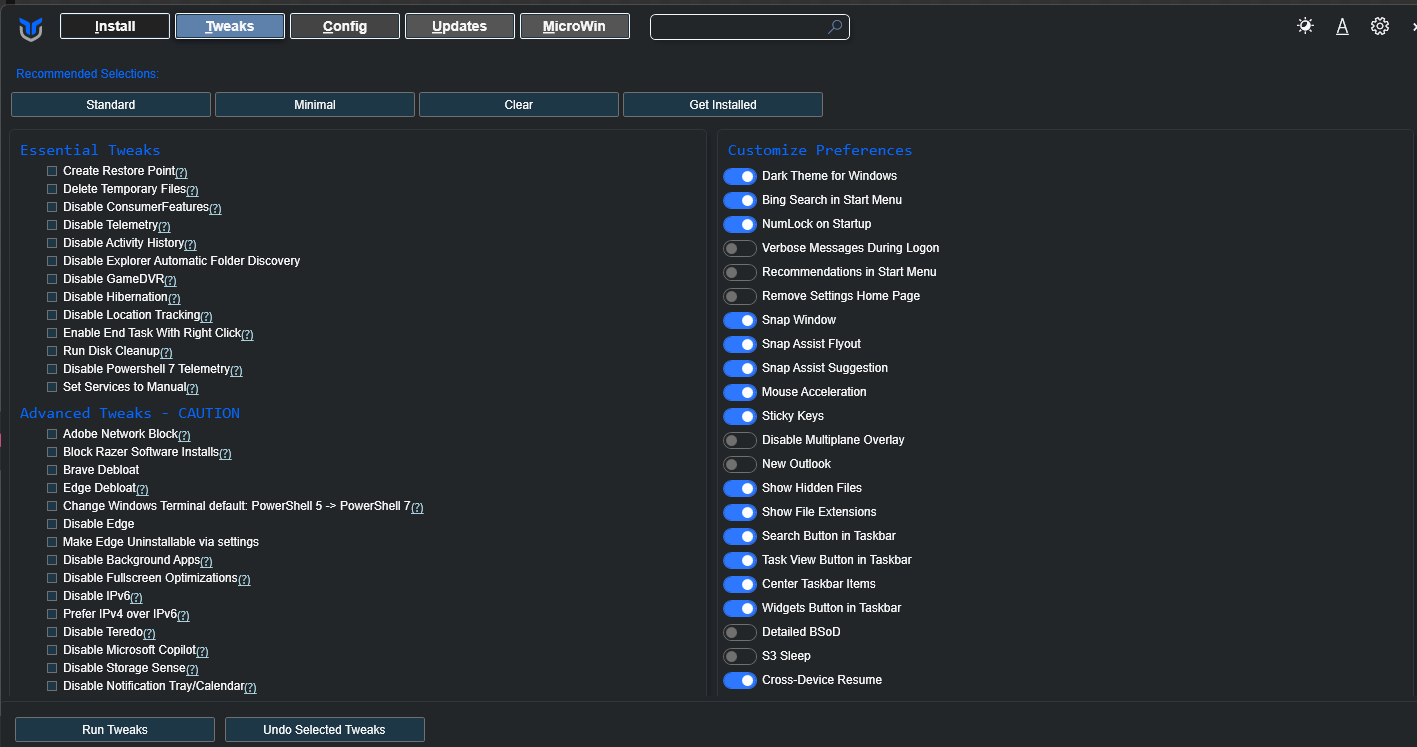
Tweaks Tab
This is where the magic happens. Presets include:
- Minimal - Light touch, safe for most users
- Standard - Recommended debloat (removes most bloat, keeps essentials)
- Advanced - Aggressive (know what you're doing)
Individual toggles let you enable/disable specific tweaks.
Config Tab
Access Windows features and legacy control panels:
- Windows Features (WSL, Hyper-V, etc.)
- Legacy panels (God Mode, old Control Panel sections)
- System restore points
Updates Tab
Manage Windows Update behavior:
- Default (normal updates)
- Security only (no feature updates)
- Disable updates (not recommended)
What Changes?
After running the "Standard" tweak preset:
| Before | After |
|---|---|
| Cortana enabled | Cortana disabled |
| Telemetry active | Telemetry reduced |
| Xbox apps installed | Xbox apps removed |
| Candy Crush, etc. | Gone |
| Background apps running | Minimized |
Your taskbar is cleaner, startup is faster, and you have more control.
Verdict
Pros
- Free and open source (MIT license)
- No installation - runs directly from PowerShell
- Actively maintained - regular updates on GitHub
- Safer than random scripts - transparent, community-reviewed code
- Huge time saver - what takes an hour manually takes 5 minutes
Cons
- Some tweaks are aggressive - test before production use
- Windows updates can revert changes - may need to re-run occasionally
- Not for everyone - if you like Xbox apps, don't remove them
Final Thoughts
For IT admins and power users, the Chris Titus Tech Windows Toolbox is a must-have. It takes a bloated Windows install and turns it into a clean, fast workstation in minutes. Just remember to backup first and test on a non-production machine.
Rating: Highly Recommended
Links
- Tool Website: https://christitus.com/windows-tool/
- GitHub Repository: https://github.com/ChrisTitusTech/winutil
- Chris Titus Tech YouTube: https://youtube.com/@ChrisTitusTech
Have questions about optimizing your business technology? Contact us for a free consultation.
Need Help Optimizing Windows Systems in the Seattle Area?
If you're looking to deploy Windows optimization tools across multiple workstations or need help debloating and securing your business PCs, Rain City Techworks provides IT support throughout the Seattle, Tacoma, and Puget Sound region. We specialize in Windows configuration and system optimization for small and medium businesses.