


There's a hidden folder in Windows that gives you instant access to over 200 settings, all in one place. It's called "God Mode," and it's been hiding in plain sight since Windows Vista.
No download required. No installation. Just a folder with a special name.
What Is God Mode?
God Mode is a special folder that consolidates every Control Panel setting into a single, searchable list. Instead of clicking through Settings, then System, then About, then Advanced System Settings, then Environment Variables (you get the idea), you just open one folder and search.
It includes settings for user accounts and credentials, display and personalization, network and sharing, security and firewall, administrative tools, power options, device management, and about 200 more.
How to Create the God Mode Folder
This takes 30 seconds.
Step 1: Create a New Folder
Right-click on your Desktop (or anywhere you want the folder) and select New, then Folder.
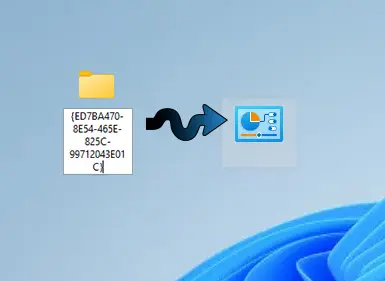
Step 2: Name It With the Magic Code
Copy and paste this exact name:
GodMode.{ED7BA470-8E54-465E-825C-99712043E01C}
Press Enter.
Step 3: Done
The folder icon changes to a Control Panel icon. Double-click to open it.

What's Inside
Open the folder and you'll see a massive list of settings, organized alphabetically.
Some highlights you can access with one click:
- Credential Manager for saved passwords
- Device Manager for hardware management
- Windows Firewall for advanced firewall settings
- Power Options for all power plans and settings
- System Restore for creating restore points
- Indexing Options for search configuration
- Administrative Tools for Event Viewer, Services, and more
These are settings that normally take four or five clicks to reach. Now they're one click away.
The Real Power: Search
Here's why God Mode is actually useful day-to-day. Open the God Mode folder, press Ctrl+F or click in the search box, and type what you're looking for.
Need firewall settings? Type "firewall" and get instant results. Looking for something about users? Type "user" and all user-related settings appear. No more clicking through five menus to find one setting.
If you've ever spent ten minutes hunting for a specific Control Panel setting in Windows 11, you'll appreciate how much time this saves.
Can You Rename It?
Yes, partially. You can change the "GodMode" part to anything you want:
AllSettings.{ED7BA470-8E54-465E-825C-99712043E01C}
ControlPanel.{ED7BA470-8E54-465E-825C-99712043E01C}
Just keep the dot and the code after it. The GUID is what makes Windows recognize it as a special folder.
Does It Work on Windows 11?
Yes. God Mode works on Windows 11, Windows 10, Windows 8 and 8.1, Windows 7, and even Windows Vista. Microsoft has never removed it, and it still works exactly the same way across all versions.
Is It Safe?
Completely. You're not hacking anything or modifying system files. This is a documented Windows Shell feature. It just isn't advertised. The GUID references the "All Tasks" shell folder, which is a legitimate part of Windows.
The worst that can happen is you change a setting you didn't mean to. But that's true of the normal Control Panel too.
Why "God Mode"?
Nobody knows who named it that. The GUID is actually the identifier for the "All Tasks" shell folder. Some blogger called it "God Mode" years ago and the name stuck.
It doesn't give you any extra powers. Just easier access to settings that already exist. Think of it less as divine intervention and more as a really convenient shortcut.
Quick Reference
The magic folder name:
GodMode.{ED7BA470-8E54-465E-825C-99712043E01C}
Works on Windows Vista through Windows 11. Creates a searchable folder containing all Control Panel settings in one place.
Techworks Blog